Case Cards
Last Updated: November 20, 2025
Document ID: UG-DASH-002
Version: 1.0
Overview
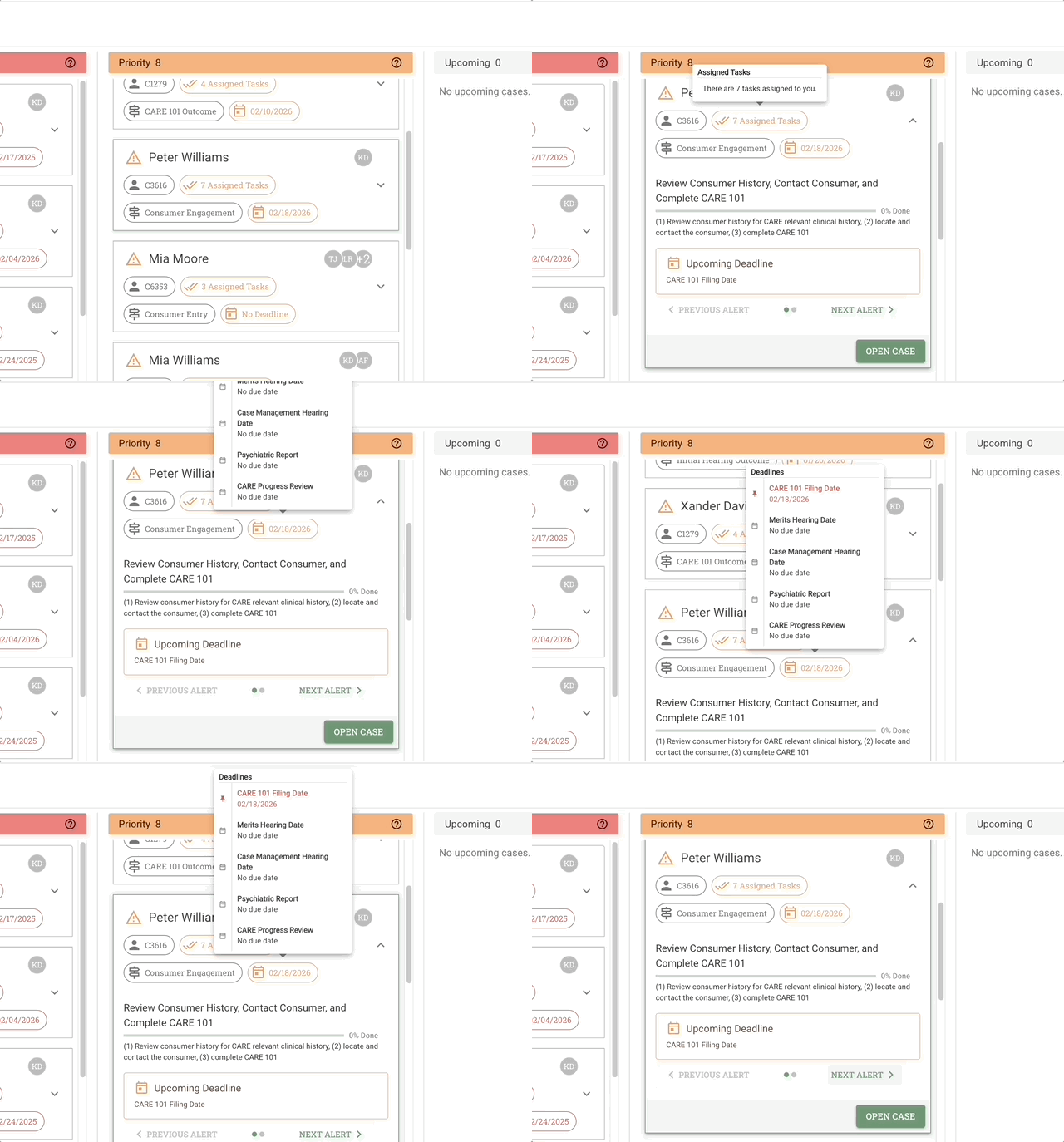
Case cards are the building blocks of your Dashboard—compact visual summaries that display essential information about each case at a glance. They're designed to help you quickly assess a case's status, identify who's working on it, and determine what needs attention without having to open the full case details.
Why case cards matter:
- Quick assessment - See critical case information without clicking through
- Visual prioritization - Color-coded status indicators highlight urgency
- Team visibility - Know who's working on each case
- Efficient navigation - Access full case details with a single click
Key Terms
| Term | Definition |
|---|---|
| Case Card | Visual representation of a case showing key information in a compact format |
| Status Indicator | Colored icon showing the urgency level (Past Due, Priority, or Upcoming) |
| Process Status | Current stage position in the workflow |
| Active Contributors | Team members currently assigned work on the current case stage |
| Maintainer | The case owner/coordinator, displayed with an orange circular border avatar to the right of the contributor group |
Scope
This guide covers:
- Understanding case card anatomy and components
- Reading status indicators and what they mean
- Viewing contributor information
- Identifying deadlines and urgency levels
- Opening cases from case cards
This guide does NOT cover:
- Editing case information (see Case Management Guide)
- Filtering options available in My Caseload and My Performance tabs
Who should use this guide:
- Case Managers
- Coordinators
- Supervisors
- Any team member with dashboard access
What you need before starting:
- Active Conduit account
- Dashboard access permissions
- Familiarity with your organization's workflow stages
Related Documents
How To Use Case Cards
Case Card Anatomy
Each case card contains multiple elements that provide a complete snapshot of a case's current state in its unexpanded (default) view.
Case Card Components (from top to bottom):
-
Status Indicator (top-left corner)
- Icon showing urgency level
- Yellow warning icon (⚠️) = Priority
- Red warning icon (❗️) = Past Due
- No icon = Upcoming
-
Client Name (header)
- Primary client information
-
Process Flow Type (subheader)
- Name of the workflow template being used
- Example: "Hospital Discharge," "Care Coordination," etc.
-
Process Status (middle section)
- Current stage in the workflow
- Shows where the case is in the overall process
-
Active Contributors + Maintainer (profile pictures, top-right of card)
- Visual avatars of team members assigned to the current stage
- Maintainer avatar appears to the right of a dividing line, distinguished by an orange circular border
- Hover over any avatar to see a tooltip identifying whether that person is a Contributor, Maintainer, or both
- Click to view all past and current contributors
-
Person ID (identifier section)
- Unique identifier for the person in the system
- This number is consistent across all Conduit views and external systems
- Also appears as "Client ID" in My Caseload table and "EHR Client ID" in the Health Record section
-
Assigned Task (middle-bottom section)
- Primary task requiring action at this stage
- Brief task description
- Displays in red (Past Due), yellow (Priority), or gray (Upcoming)
-
Deadline Information (bottom)
- Due date for current task or stage
- "Past Due" or "Overdue" labels when applicable
- Days until deadline for upcoming items
- Displays in red (Past Due), yellow (Priority), or gray (Upcoming)
💡 Note: Case card elements (Assigned Task and Deadlines) display in colors matching their swimlane: red for Past Due, yellow for Priority, and gray for Upcoming.
Understanding Status Indicators
Status indicators provide instant visual cues about case urgency.
Status Indicator Types:
| Color | Icon | Swimlane | Meaning | Action Required |
|---|---|---|---|---|
| Red | ❗️ | Past Due | Deadline has passed | Immediate attention needed |
| Yellow | ⚠️ | Priority | Deadline within 30 days | Prompt action required |
| None | — | Upcoming | Deadline beyond 30 days | Plan ahead, monitor progress |
Visual Examples:
💡 Tip: Status indicators match the swimlane the case appears in, making it easy to scan for urgency levels at a glance.
Expanding Case Cards
Case cards can be expanded to reveal additional task details, alerts, and quick actions without opening the full Case Page.
How to Expand:
- Click anywhere on the unexpanded case card, OR
- Click the downward-pointing caret icon (▼) below the Active Contributors section
The case card expands in place, revealing additional information.
Expanded Card Contents:
When expanded, the case card displays:
-
Task Information:
- Task title (name of the current assigned task)
- Task progress indicator
- Task description (detailed explanation of what needs to be done)
-
Alerts:
- Current alert displayed (if any alerts exist)
- Examples of alerts:
- Past due deadlines with specific task name
- Upcoming critical deadlines
- Required actions or notifications
-
Alert Navigation:
- Previous Alert button - Navigate to earlier alerts
- Next Alert button - Navigate to subsequent alerts
- Only visible when multiple alerts exist
-
Open Case Button:
- Click to open the full Case Page
- Provides access to all case details, documents, team, and activity
How to Collapse:
To return to the unexpanded view:
- Click anywhere on the expanded case card, OR
- Click the upward-pointing caret icon (▲)
The card returns to its compact, unexpanded state.
💡 Tip: Use expanded cards to quickly review task details and navigate alerts without leaving the Dashboard. Only click "Open Case" when you need full access to documents, team collaboration, or detailed case management.
⚠️ Note: Alert navigation buttons (Previous Alert, Next Alert) only appear when a case has multiple alerts. Cases with one alert show only that alert, and cases with no alerts show no alert section.
Viewing Contributor Information
Active contributors and the maintainer are shown as avatars in the top-right of the case card.
Avatar layout:
- Left of the line: Active contributor avatars (team members assigned work in the current stage)
- Right of the line: Maintainer avatar, distinguished by an orange circular border
- A person can appear on both sides if they are both a contributor and the maintainer
Steps to view contributors:
-
Quick View:
- Locate the profile picture avatars on the case card (top-right)
- Hover your cursor over any avatar
- Tooltip appears identifying the person as Contributor, Maintainer, or Contributor and Maintainer
-
Full Contributor List:
- Click "open this panel" in the tooltip
- OR click directly on the avatar section
- Panel opens showing all past and current contributors
- View contributor names, roles, and assignment dates
What you'll see:
- Profile pictures or initials for each person
- Maintainer avatar has an orange circular border (appears to the right of the divider line)
- Maximum of 3-4 avatars displayed directly on card
- "+X more" indicator if additional contributors exist
- Full list available in expanded panel
Reading Deadline Information
Deadline information helps you prioritize work and meet due dates.
Deadline Display Formats:
-
Upcoming deadlines:
- "Due in X days" (for deadlines 7+ days away)
- "Due in X days" (for deadlines 2-6 days away)
- "Due tomorrow" (for next-day deadlines)
-
Overdue items:
- "Past Due" label in red
- "Overdue by X days"
- Automatic placement in Past Due swimlane
-
No deadline:
- "No deadline set" or blank deadline field
- Typically appears in Upcoming swimlane
⚠️ Note: Deadlines are calculated based on task due dates and process stage timeframes. Cases automatically move between swimlanes as deadlines approach or pass.
Opening a Case from a Case Card
Access the full Case Page to work with all case details, tasks, documents, and team collaboration.
Steps:
-
Expand the case card (see Expanding Case Cards)
- Click anywhere on the case card, OR
- Click the downward-pointing caret icon (▼)
-
Click the "Open Case" button in the expanded card view
-
The Case Page opens, providing access to:
- All tasks and task management
- Documents and resources
- Team members and collaboration
- Alerts and notifications
- Activity history
- Client profile information
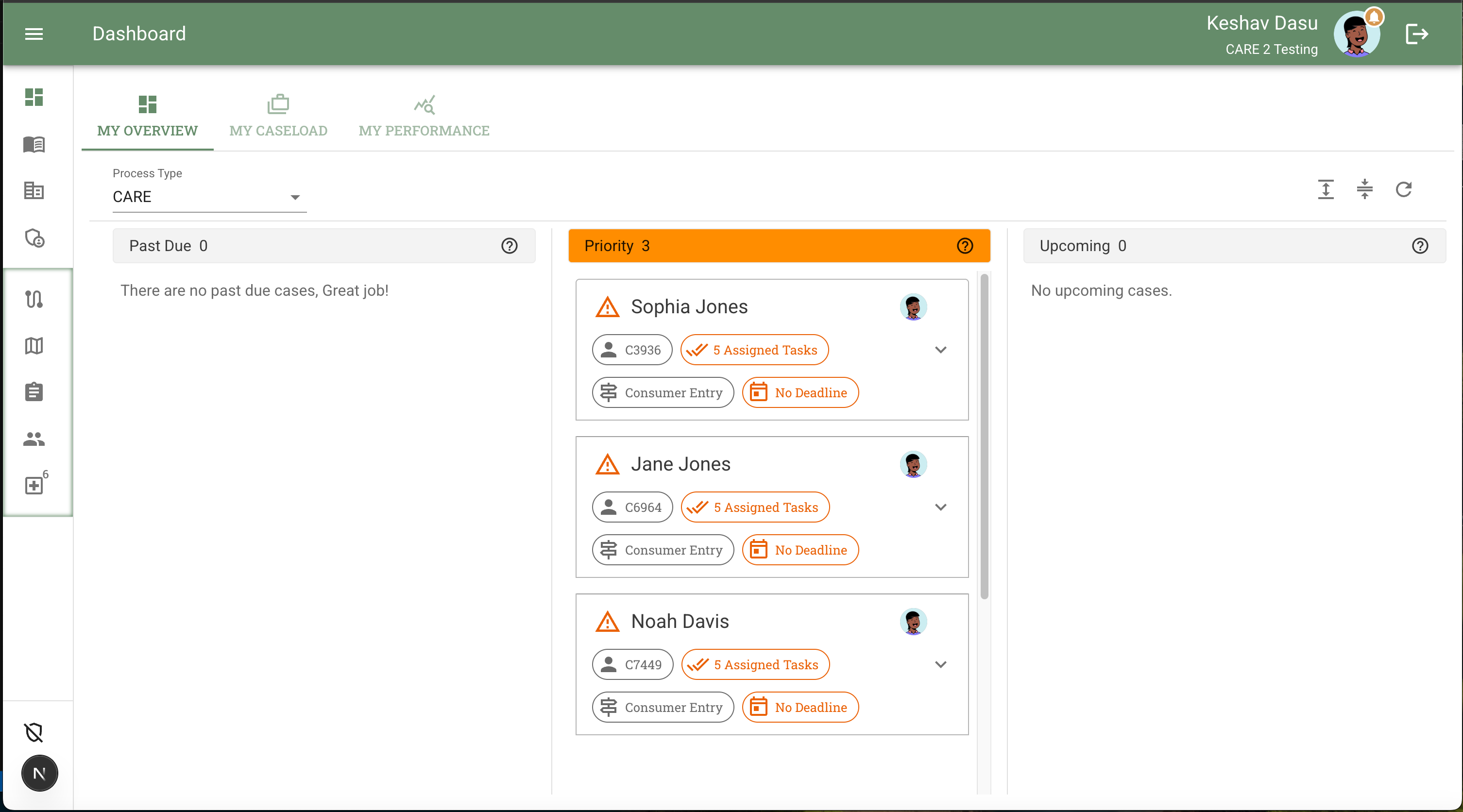 Click the Open Case button in the expanded card view
📘 Learn more: See Case Page Overview for detailed information about working within the Case Page.
💡 Tip: Use the expanded card view to quickly review task details and alerts before deciding whether to open the full Case Page.
📘 Learn more: See Safe Mode Guide for privacy settings and disabling Safe Mode. -->
Tips & Best Practices
💡 Efficient Case Card Usage:
- Scan status indicators first - Colors help you prioritize without reading details
- Hover before clicking - Use hover tooltips to gather information without navigating away
- Use right-click menus - Quick actions save time for routine tasks
- Check contributors - Coordinate with team members before taking action on shared cases
💡 Visual Scanning Strategies:
- Top-to-bottom review - Start with Past Due swimlane, work down to Upcoming
- Color grouping - Group similar status colors mentally to batch similar urgency levels
- Deadline clustering - Focus on cases with similar deadlines for efficient time blocking
💡 Team Collaboration:
- Verify active contributors before reassigning tasks to avoid duplication
- Check contributor panel to understand case history and handoffs
- Use comments feature (via right-click menu) for quick team communication
Common Issues & Solutions
Case Cards Missing Information
Problem: Some fields on case cards are blank or showing "No information."
Solution:
- The case may be newly created without all fields completed
- Your role may not have permission to view certain fields
- The process flow may not require those fields at the current stage
- Contact your supervisor if you believe you should have access
Status Indicator Doesn't Match Swimlane
Problem: A case has a yellow Priority indicator but appears in the Upcoming swimlane (or similar mismatch).
Solution:
- Refresh your browser (F5 or Cmd/Ctrl + R)
- The case may have just been updated—status syncing can take a moment
- Clear your browser cache if the issue persists
- Contact support if discrepancies continue
Can't Open Case from Card
Problem: Clicking on a case card doesn't open the case details.
Solution:
- Verify you have permission to view case details
- Try right-clicking and selecting "Open case" from the menu
- Check if the case is locked or in a restricted state
- Refresh the dashboard and try again
Frequently Asked Questions
Q: Why do some case cards show more information than others?
A: Different process flows and case stages may require different fields. Cards dynamically display relevant information based on the current stage and workflow requirements.
Q: Can I customize what information appears on case cards?
A: Card layout is standardized for consistency across the platform. Contact your administrator about organization-level customization options.
Q: How many contributors can be shown on a case card?
A: Up to 3-4 contributor avatars display directly on the card. If more contributors exist, a "+X more" indicator appears. Click to view the complete list.
Q: Why don't all cases have deadlines?
A: Some process flows or stages may not have strict deadlines. Cases without deadlines typically appear in the Upcoming swimlane.
Q: What happens if a case has multiple deadlines?
A: The case card displays the nearest upcoming deadline. All deadlines are visible when you open the full case details.
Q: Can I see completed cases on my dashboard?
A: The Dashboard Overview tab primarily shows active cases. To view completed or archived cases, switch to the My Caseload or My Performance tabs where filtering options are available.
Related Topics
- Dashboard: My Overview - Understanding the full dashboard interface
- Dashboard: My Caseload - Table view with filtering
- Swimlanes - How cases are organized by urgency
- Case Management - Working with cases in detail
Need Help?
Can't find what you're looking for?
- Search documentation - Use the search bar at the top of this page
- Contact Support - Email support@servicethinking.com or use the in-app help chat
Next Steps:
- Learn about Swimlanes to understand case organization
- Read Case Management Guide to work with cases in depth
- Explore My Caseload and My Performance tabs for filtering and analytics