Dashboard: My Overview
Last Updated: March 9, 2026
Document ID: UG-DASH-001
Version: 1.3
Overview
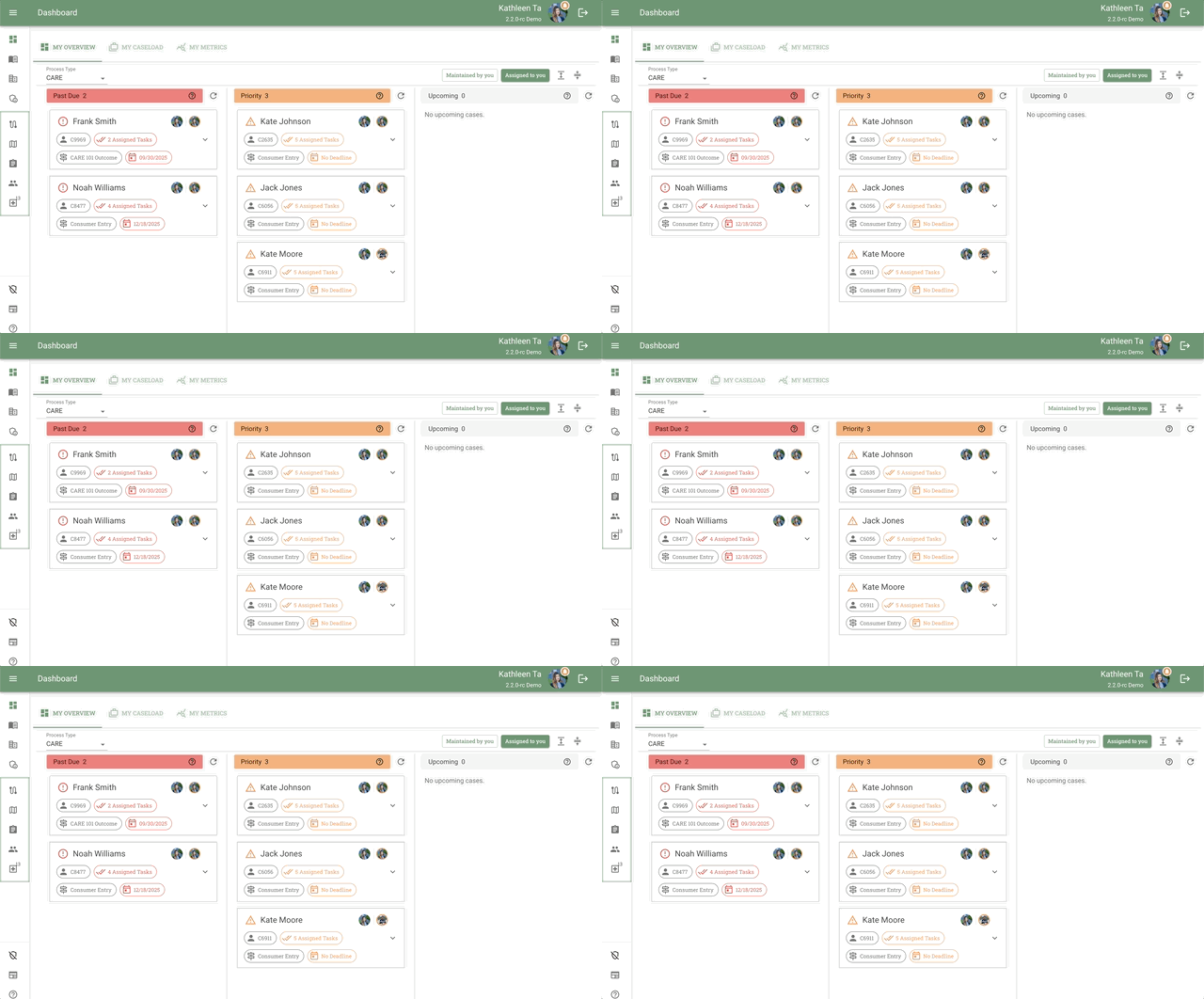
The Dashboard is your main workspace in Conduit—it's where you'll spend most of your time managing cases, monitoring deadlines, and staying on top of your responsibilities. Think of it as your command center, giving you instant visibility into your caseload so you can prioritize work and track case progress efficiently.
Why use the Dashboard:
- See your entire workload at a glance - All your assigned cases in one view
- Prioritize what matters - Quickly identify cases that need immediate attention
- Track progress - Monitor where each case is in the workflow
- Meet deadlines - Stay aware of upcoming due dates and overdue items
- Collaborate effectively - View cases assigned to team members
Scope
This guide will walk you through:
- Accessing the Dashboard from the Main Navigation Sidebar
- Understanding how swimlanes organize your cases by urgency
- Reading the information displayed on case cards
- Expanding case cards to view task details and alerts
- Opening a Case Page to work with an individual case
For related topics, see:
- Dashboard: My Caseload - Viewing your cases in a table format with filtering and sorting
- Dashboard: My Metrics - Viewing your performance metrics and analytics
- Dashboard: Case Cards - Detailed information about case card anatomy
- Dashboard: Swimlanes - In-depth guide to swimlane organization
- Case Page Overview - Working with individual cases
- Task Management - Completing tasks within cases
Key Terms
| Term | Definition |
|---|---|
| Case | A client's journey through a care coordination process |
| Swimlane | Vertical column organizing cases by priority or deadline status |
| Case Card | Visual representation of a case showing key information |
| Process Flow | Structured workflow template defining stages and tasks for a specific type of care |
| Active Contributors | Team members currently assigned work on a case |
| Process Status | Current stage position in the workflow |
How To Use
What the Dashboard Shows You
The Dashboard provides a real-time overview of all your active cases, organized into swimlanes so you can see at a glance which cases need immediate attention, which are progressing smoothly, and which require proactive planning.
Accessing the Dashboard
Your starting point for all case management activities.
Steps:
- Log into Conduit at [your-organization].conduit.app
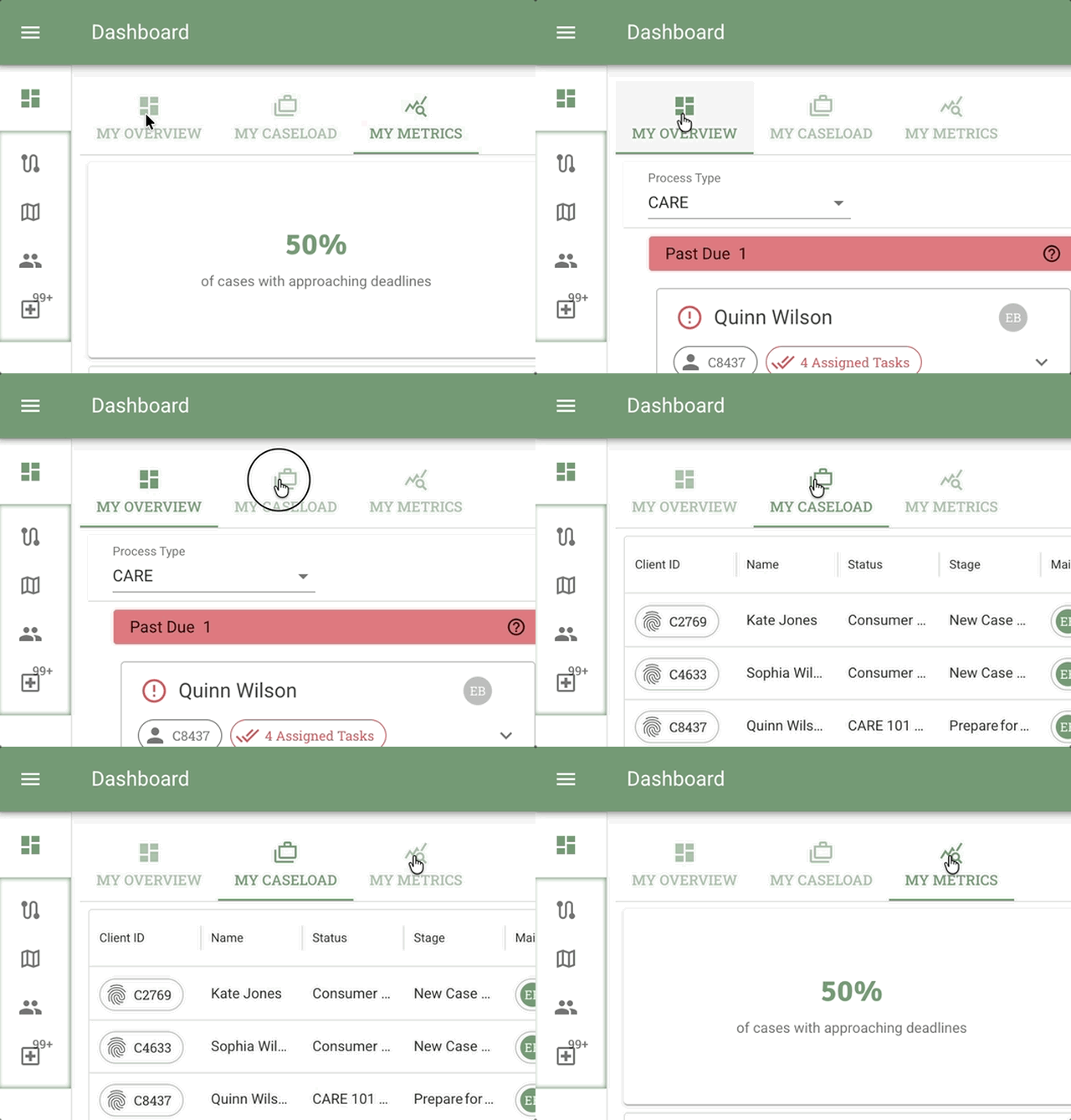
- The Dashboard: Overview tab loads automatically after login
- Located in the main content area, next to tabs for "My Dashboard: Caseload" and "Dashboard: My Performance"
- These tabs appear just below the main header
To return to the Dashboard from anywhere in Conduit:
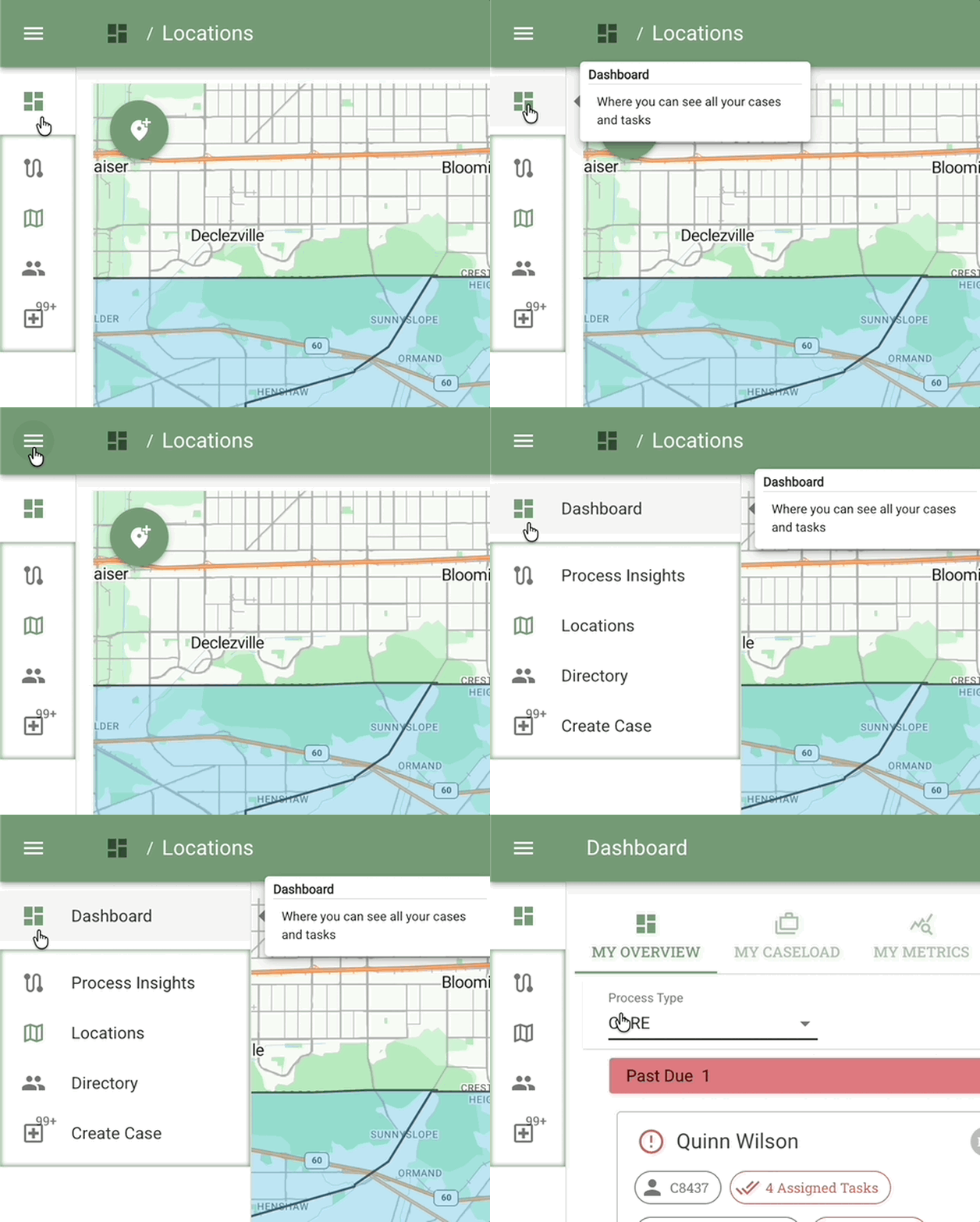
- Click the three-line menu icon (☰) in the top-left corner next to the feature name
- From the expanded Main Navigation Sidebar, click the Dashboard icon (first icon in the menu)
- OR click the 4-square grid icon directly below the three-line icon in the left-aligned toolbar
- Hover over this icon to see: "Dashboard - Where you can see all your cases and tasks"
Understanding Swimlanes
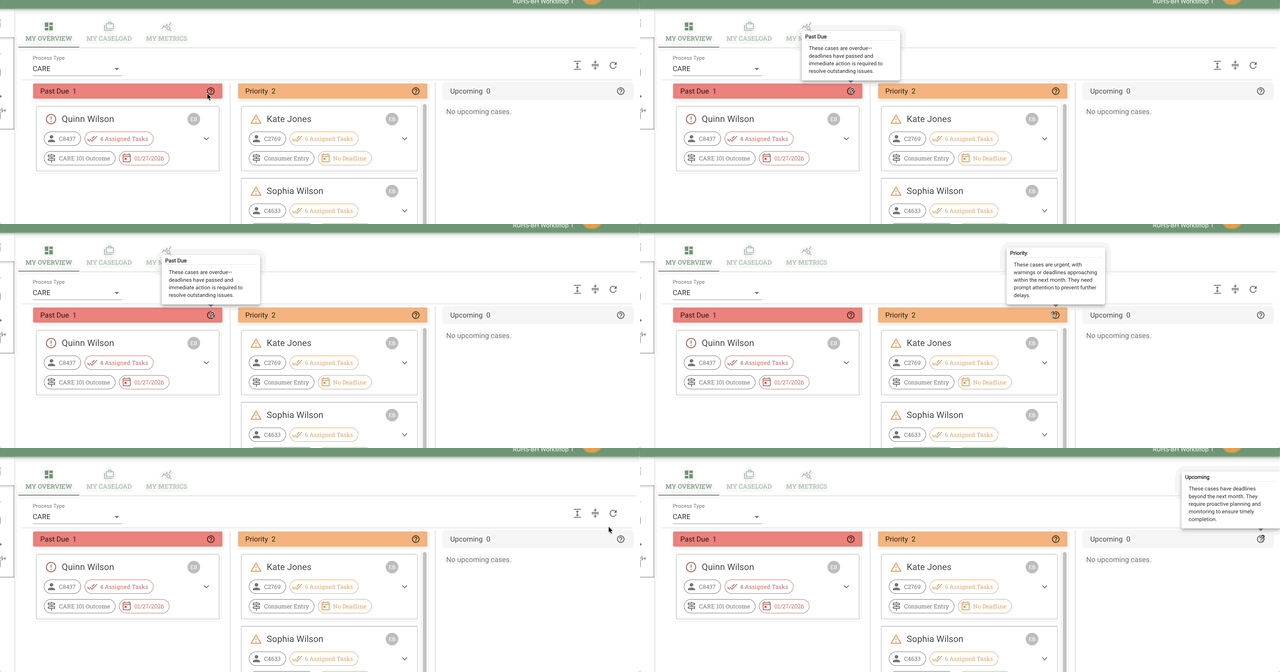
Swimlanes organize your cases into columns based on deadline urgency so you can prioritize your work effectively.
Default Swimlanes:
-
Past Due
These cases are overdue—deadlines have passed and immediate action is required to resolve outstanding issues. -
Priority
These cases are urgent, with warnings or deadlines approaching within the next month. They need prompt attention to prevent further delays. -
Upcoming
These cases have deadlines beyond the next month. They require proactive planning and monitoring to ensure timely completion.
Pagination:
Each swimlane displays one page of cases at a time. Use the pagination controls at the bottom of each swimlane to navigate between pages if you have many cases.
💡 Tip: Cases automatically move between swimlanes as deadlines approach. Check "Past Due" first each day to address urgent items.
Dashboard Controls
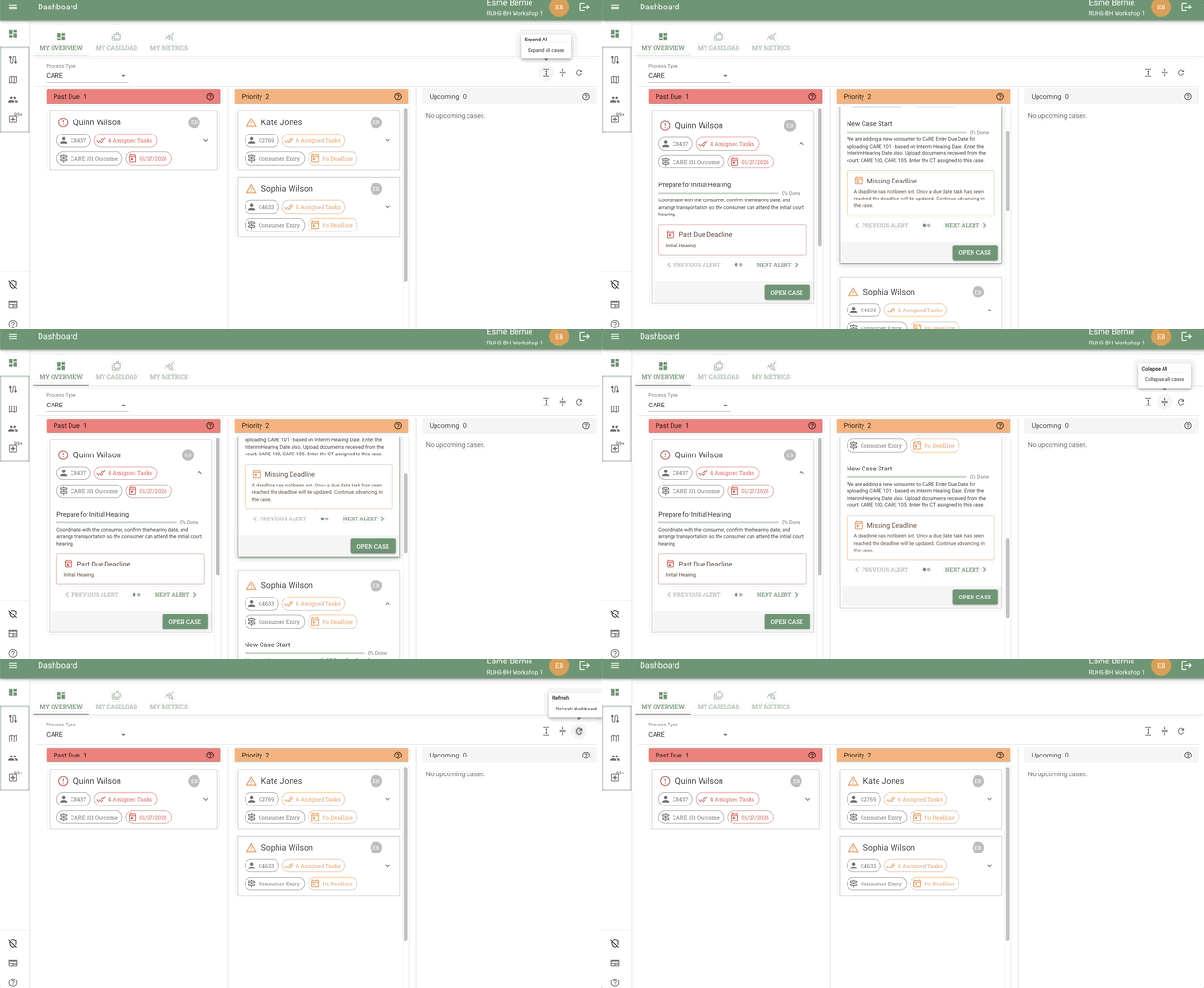
Located at the top of the Dashboard (below the My Overview tabs, above the swimlanes), you'll find controls for managing your case card view and filtering:
Controls:
- Process Type Dropdown (left-aligned) - Shows cases belonging to an available process flow type (e.g., CARE, etc.). Select a different process type to view only cases following that workflow template.
- Filter by Maintainer (autocomplete) - Type a name to find and select a team member; shows only cases where that person is the case maintainer. Suggestions appear as you type.
- Filter by Assignee (autocomplete) - Type a name to find and select a team member; shows only cases where that person has been assigned tasks. Suggestions appear as you type.
- Expand All (right-aligned) - Expands all case cards simultaneously to show task details and alerts
- Collapse All (right-aligned) - Collapses all case cards back to their compact unexpanded view
- Refresh (right-aligned) - Refreshes the dashboard to show the latest case updates and changes
💡 Tip: Use "Expand All" for a comprehensive view of tasks and alerts across your caseload, then "Collapse All" when you need to see more cases at once. Use the Process Type dropdown to switch between available workflow types. Use the Maintainer and Assignee autocomplete filters to focus on a specific team member's cases.
Reading Case Cards
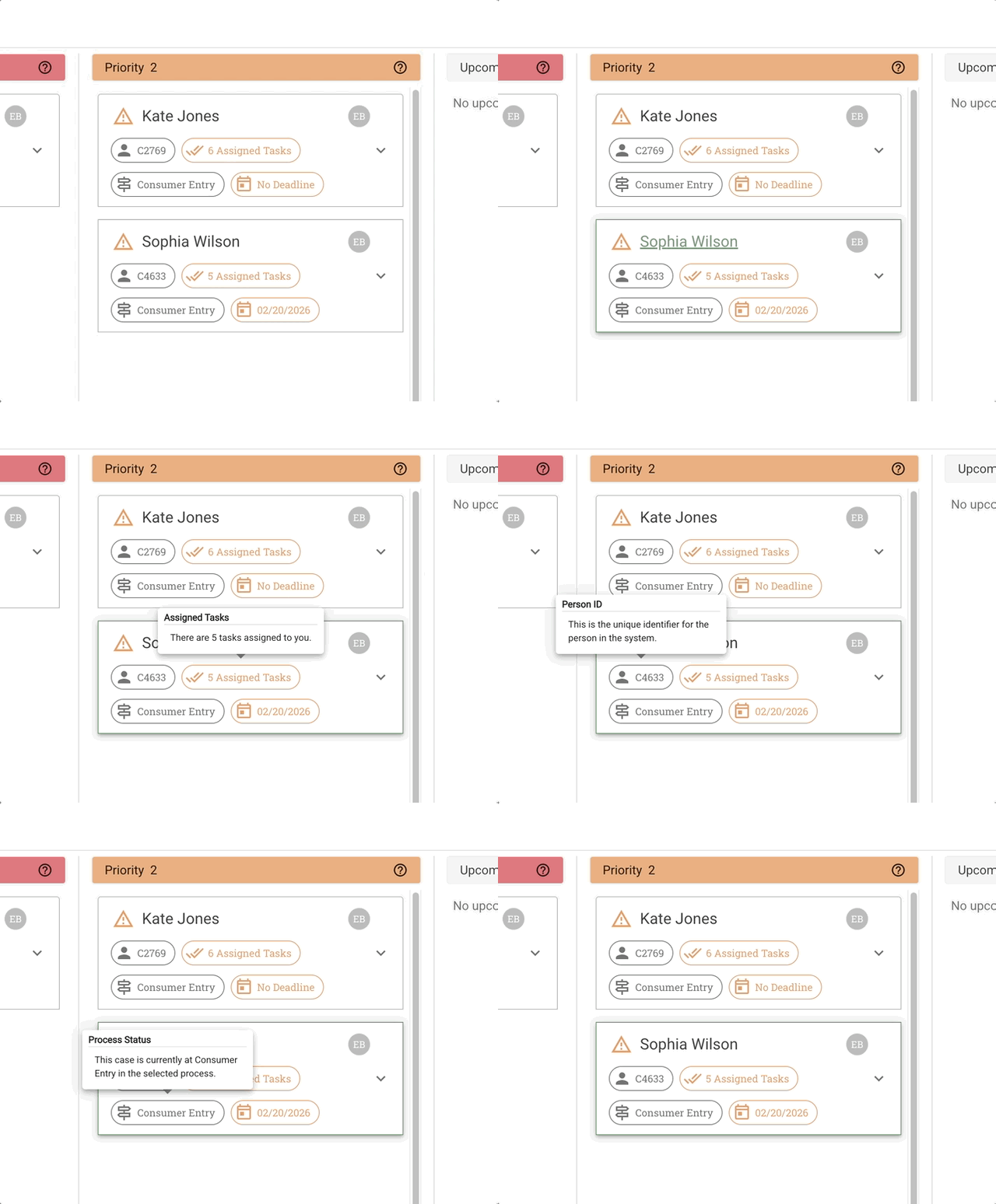
Each case card displays essential information for quick assessment in its default (unexpanded) state.
Case Card Elements (Unexpanded):
- Status Indicator (top left) - Icon showing swimlane status
- Yellow warning icon (⚠️) for Priority cases
- Red warning icon (❗️) for Past Due cases
- No icon for Upcoming cases
- Client Name - Primary client information
- Process Flow Type - The workflow template assigned to this case
- Process Status - Current stage in the workflow
- Active Contributors - Team members assigned work on this stage
- Hover over profile pictures to see: "Active Contributors - There are X team members assigned work on this stage. To view all past and current contributors, open this panel"
- Person ID - Unique identifier for the person in the system
- Assigned Tasks - Number of tasks assigned to you in the client's current stage (displays in red/yellow/gray based on swimlane)
- Deadlines - Upcoming deadline dates or overdue status (displays in red/yellow/gray based on swimlane)
📘 Learn more: See Case Cards for detailed information about each element.
Expanding Case Cards
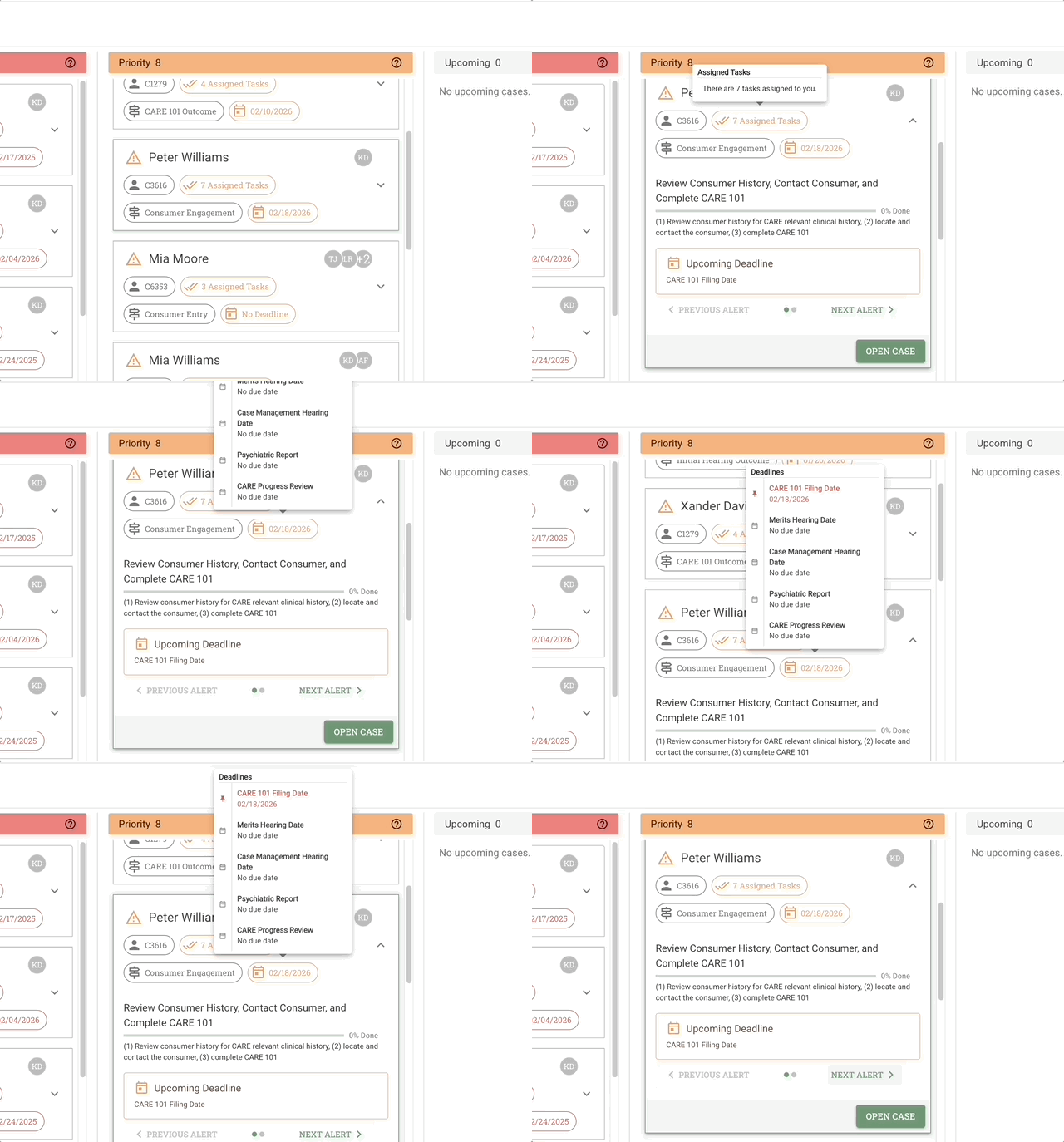
Case cards can be expanded to show additional task and alert information without opening the full Case Page.
How to expand a case card:
- Click anywhere on the case card, OR
- Click the downward-pointing caret icon (▼) below the Active Contributors
What appears when expanded:
- Task Information:
- Task title
- Task progress in stage
- Task description
- Alert Navigation:
- Current alert displayed
- Previous Alert button to view earlier alerts
- Next Alert button to view subsequent alerts
- Open Case Button:
- Click to open the full Case Page and access all case details
Alert Examples:
Alerts may include:
- Past due deadlines with the specific task name
- Upcoming critical deadlines
- Required actions or notifications
To collapse the case card:
- Click anywhere on the expanded case card, OR
- Click the upward-pointing caret icon (▲) to return to unexpanded view
💡 Tip: Use expanded cards to quickly review task details and alerts without leaving the Dashboard. Click "Open Case" only when you need to work with the full Case Page.
Opening a Case
Access the full Case Page to work with tasks, documents, and complete case details.
Method 1: Click Client Name (Fastest)
- Locate the case card on your dashboard
- Click directly on the client name on the case card
- The Case Page opens immediately, showing complete information including all tasks, documents, team, alerts, and activity history
Method 2: Expand Card & Open Case Button
- Locate the case card on your dashboard
- Expand the case card (click anywhere on the card or click the ▼ caret icon)
- Click the "Open Case" button in the expanded card
- The Case Page opens
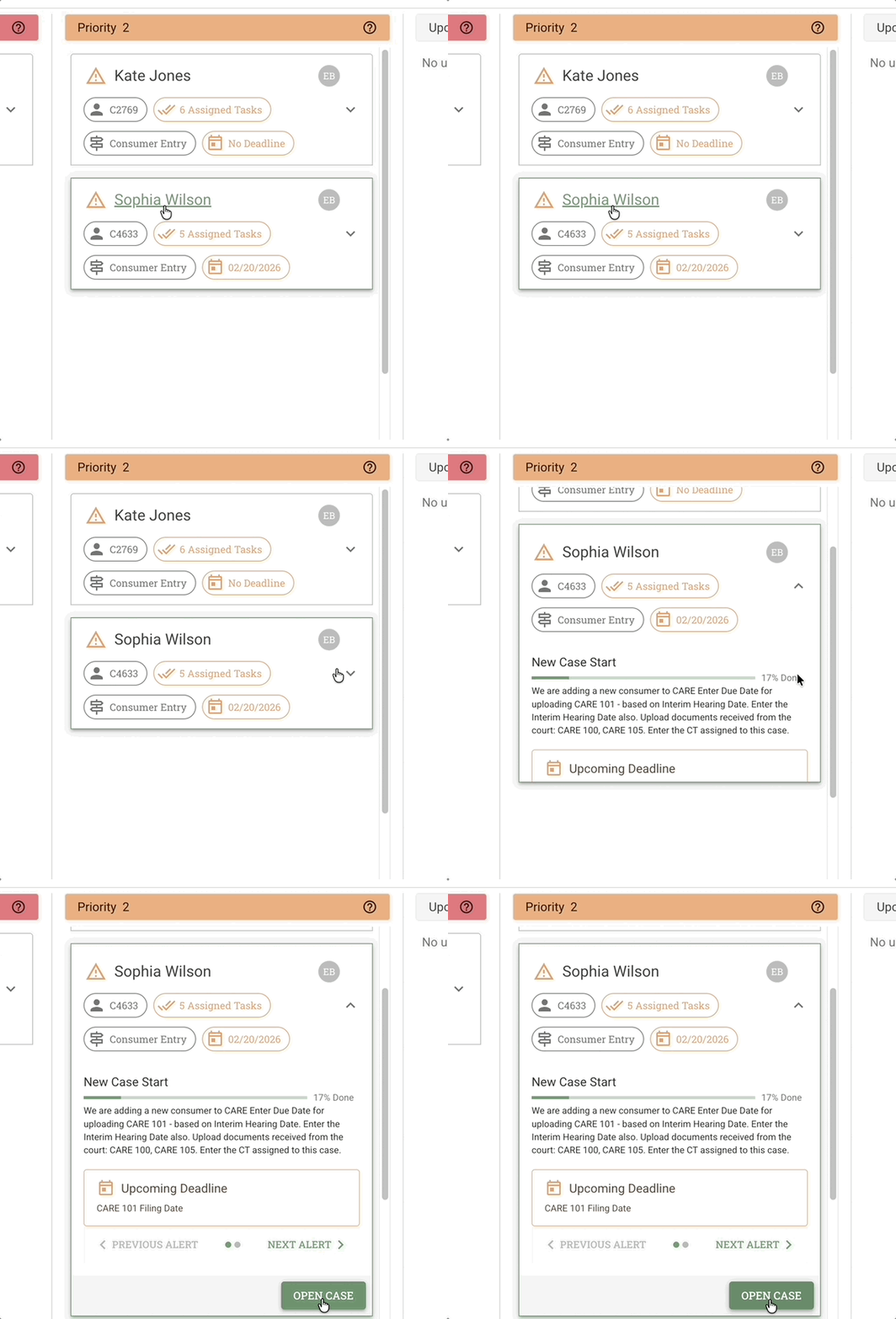
Click the Open Case button in the expanded card view, or click the client name directly
📘 Learn more: See Case Page Overview for working within the Case Page.
Tips & Best Practices
💡 Daily Workflow:
- Start each day by reviewing your Past Due swimlane to address urgent items immediately
- Check Priority cases next to prevent them from becoming overdue
- Review Upcoming cases to plan ahead and stay proactive
- Right-click case cards for quick actions without opening the full case
💡 Efficiency Tips:
- Hover over Active Contributors profile pictures to see full team member details
- Refresh your dashboard regularly to see the latest case updates
💡 Team Collaboration:
- Monitor Active Contributors to see who's working on each case
- Use case comments for quick team communication
- Check the activity feed to stay informed of recent updates
Common Issues & Solutions
Cases Not Appearing on Dashboard
Problem: Expected cases are missing from your dashboard view.
Solution:
- Check your active filters—you may have filters applied that exclude these cases
- Verify you have permission to view those cases
- Confirm the cases are in an active status (not closed or archived)
- Try refreshing the page (F5 or Cmd/Ctrl + R)
- Learn how to Create a Case
Dashboard Not Updating
Problem: Changes you make to cases aren't reflected immediately on the dashboard.
Solution:
- Manually refresh the page (F5 or Cmd/Ctrl + R)
- Clear your browser cache if the problem persists
- Contact support if issues continue
Frequently Asked Questions
Q: What do the different status indicators mean on case cards?
A: Status indicators correspond to the swimlane the case appears in:
- Yellow warning icon (⚠️) = Priority (deadline approaching within the next month)
- Red warning icon (❗️) = Past Due (deadline has passed)
- No icon = Upcoming (deadline beyond the next month)
Q: How do I see all team members who have worked on a case?
A: Hover over the Active Contributors profile pictures on a case card, then click "open this panel" to view all past and current contributors.
Q: How often does the dashboard update?
A: The dashboard shows real-time updates when cases are modified. Refresh your browser (F5 or Cmd/Ctrl + R) if you don't see recent changes immediately.
Q: Can I change how swimlanes are organized?
A: Default swimlane organization (Past Due, Priority, Upcoming) is standard. Contact your administrator about custom dashboard views or filtering options.
Q: What's the difference between Person ID, Client ID, and EHR Client ID?
A: These are all the same unique identifier - just displayed in different locations:
- Person ID - Shown on the case card in the Dashboard
- Client ID - Shown in the My Caseload table view
- EHR Client ID - External identifier for ELMR electronic health records connection (displayed in the Health Record section on the Case Page)
💡 Tip: This number uniquely identifies the person across all views in Conduit and external systems.
Related Topics
- Case Management - Understanding cases in depth
- Task Management - Working with case tasks
Need Help?
Can't find what you're looking for?
- Search documentation - Use the search bar at the top of this page
- Contact Support - Email support@servicethinking.com or use the in-app help chat
Related Documents
- Dashboard: My Caseload - Viewing your cases in a table format with filtering and sorting
- Dashboard: My Metrics - Performance metrics and analytics for your caseload
- Dashboard: Case Cards - Detailed information about case card anatomy
- Dashboard: Swimlanes - In-depth guide to swimlane organization
- Case Page Overview - Working with individual cases
- Task Management - Completing tasks within cases
- Cases Overview - Understanding case concepts and workflows
Next Steps:
- Learn about Case Cards to understand the information displayed
- Learn about My Caseload for table view and filtering
- Explore Task Management to start working on case tasks