Creating Cases
Last Updated: March 4, 2026
Document ID: UG-DASH-007
Version: 1.1
Key Terms
| Term | Definition |
|---|---|
| Eligible Individual | A person from your connected EHR system who has been pre-approved by your organization to be tracked in Conduit. |
| EHR | Electronic Health Record system (e.g., Epic) that connects to Conduit at your organization level. |
| MRN | Medical Record Number - unique identifier for a patient in the EHR system. |
| New Cases Panel | Left-side panel in Create Case interface showing your list of eligible individuals from the EHR. |
| EHR Credentials | Access permissions established in your organization's EHR system that Conduit honors without bypass. |
| Process Flow | Workflow template you'll select during case creation that defines the case's Episode/Group/Stage/Task structure. |
| Maintainer | The person responsible for coordinating a stage. When you create a case, you automatically become the first maintainer. |
Overview
This guide walks you through creating new cases in Conduit from eligible individuals in your organization's Electronic Health Record (EHR) system. You'll learn how to search for patients, select a workflow template, and complete case creation.
What you'll learn:
- How to access the Create Case interface
- Searching for eligible individuals from your EHR
- Selecting a workflow template for your case
- What happens after you create a case
- Where to find your newly created cases
What this guide doesn't cover:
- EHR integration setup (handled by your IT team)
- Who can create cases in your organization (determined by your admin)
- Working within cases after creation (see Case Page Overview)
Who typically creates cases:
Most organizations grant case creation access to Case Managers, Coordinators, and Intake Staff, but your specific permissions are set by your organization administrator.
How To Use Create Case
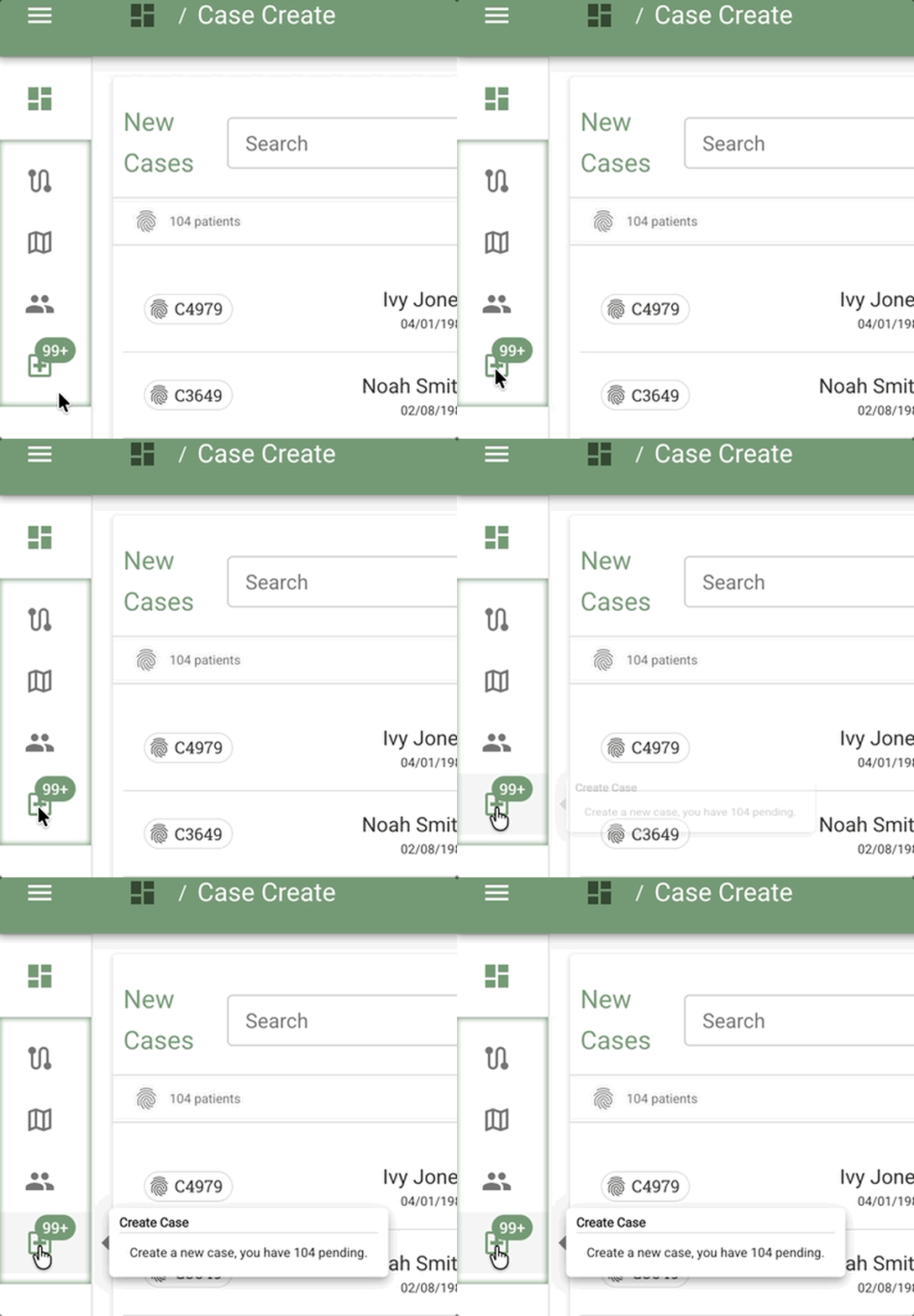
Accessing Create Case
Create Case button location: Last item in the left navigation tool tray (plus icon )
Accessible from:
- Dashboard (all tabs: My Overview, My Caseload, My Performance)
- Case Page
- Locations
- Process Insights
- Directory
Note: The Create Case button is mutually accessible from all tool tray items. See FAQ: Navigation & Access for more details.
Create Case Interface Layout
The Create Case interface uses a two-panel layout similar to the Case Page:
Left Panel: New Cases list
Right Panel: EHR content preview or selection prompt
Finding Eligible Individuals
The New Cases panel shows you a list of individuals from your organization's EHR system who have been pre-approved for case management in Conduit.
Important note about visibility: Depending on your EHR credentials, you may or may not see full patient details. Conduit respects your organization's security settings, so if information appears masked, that's working as intended. You can still create cases even if you don't see all the details - the system will track the case properly.
New Cases Panel (Left Side)
Search Bar:
You have two ways to find someone:
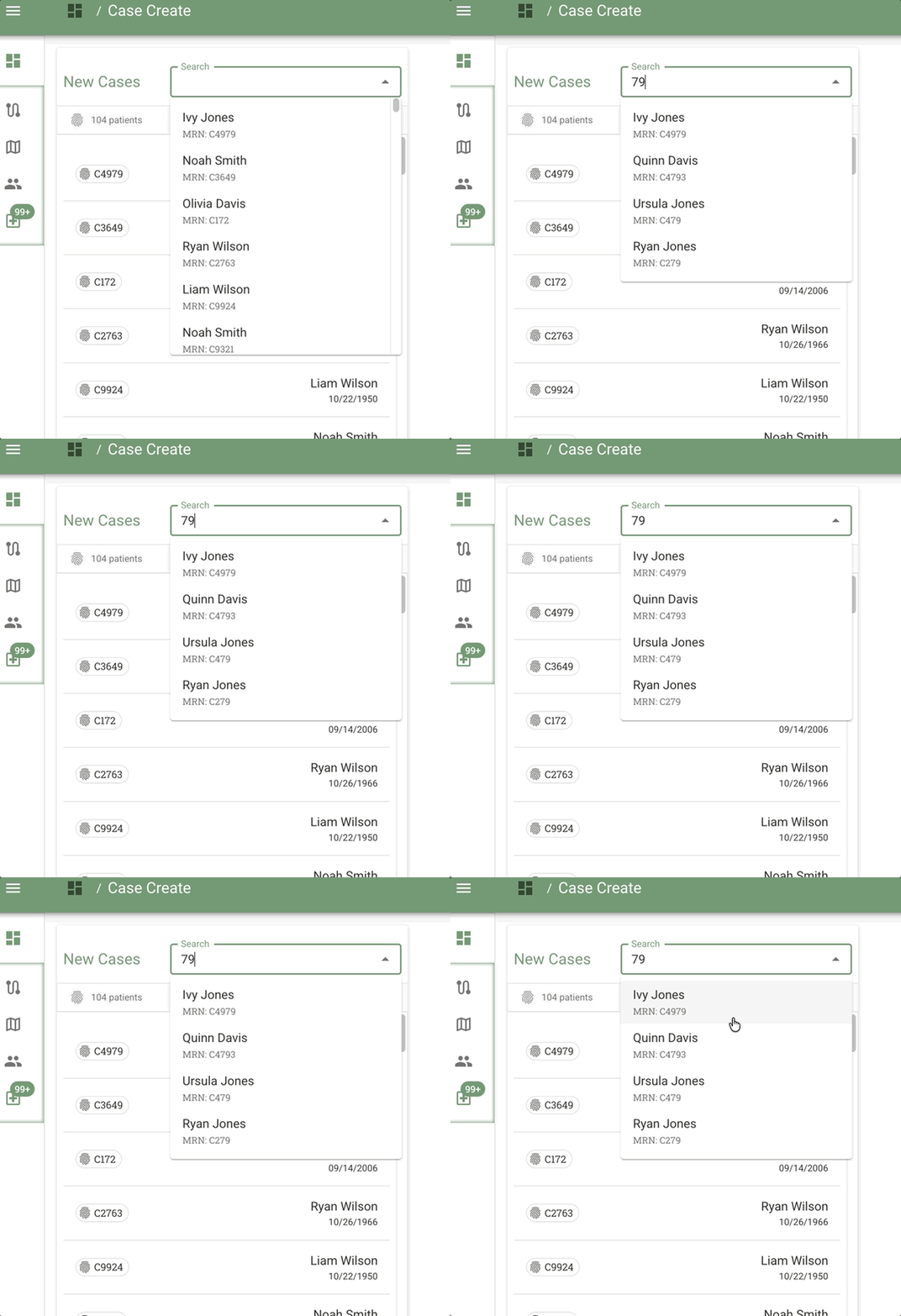
| Method 1: Search by Name | Method 2: Search by MRN (Medical Record Number) |
|---|---|
| Type any part of their first name, last name, or both | Enter digits from anywhere in the number |
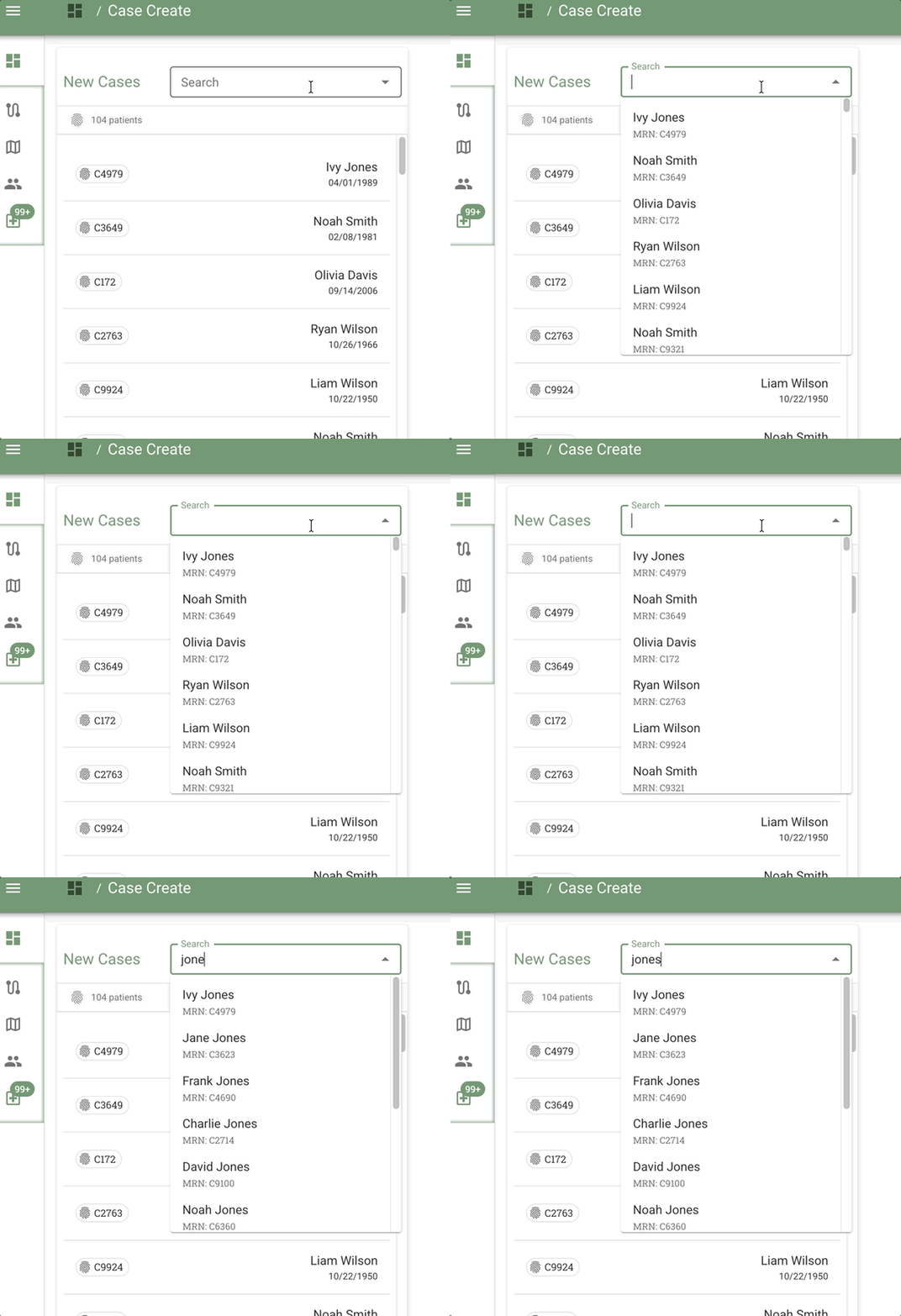 |  |
How Name Search Works:
Type partial names to filter results in the dropdown:
- "Ivy" finds anyone with "Ivy" in first or last name
- "Jones" finds anyone with "Jones" in first or last name
- Results appear in dropdown list below the search bar as you type
How MRN Search Works:
MRN search is flexible - it matches digits appearing anywhere in the medical record number:
- For MRN 4979, you can search:
79,979,4979 - System also finds cross-matches:
4793,279(any MRN containing those digits) - You don't need to know the full number or start from the beginning
Example: Finding Ivy Jones (MRN: 4979)
By Name:
- Type "Ivy" → Results show "Ivy Jones"
- Type "Jones" → Results show "Ivy Jones"
By MRN:
- Type "79" → Shows all clients with "79" anywhere in their MRN (including 4979, 4793, 279)
- Type "979" → Shows clients with "979" (including 4979)
- Type "4979" → Shows exact match
The list displays results in this format: [Name] (MRN: [Number])
Patient Count Indicator:
Below the search bar, you'll see a fingerprint icon with a count of patients.
What the count means:
- Before selection:
[Number] patients(e.g., "20 patients") - This is the total number of eligible individuals from your EHR - After selection:
Showing 1 of [Number] patients(e.g., "Showing 1 of 20 patients") - You've selected someone from the list
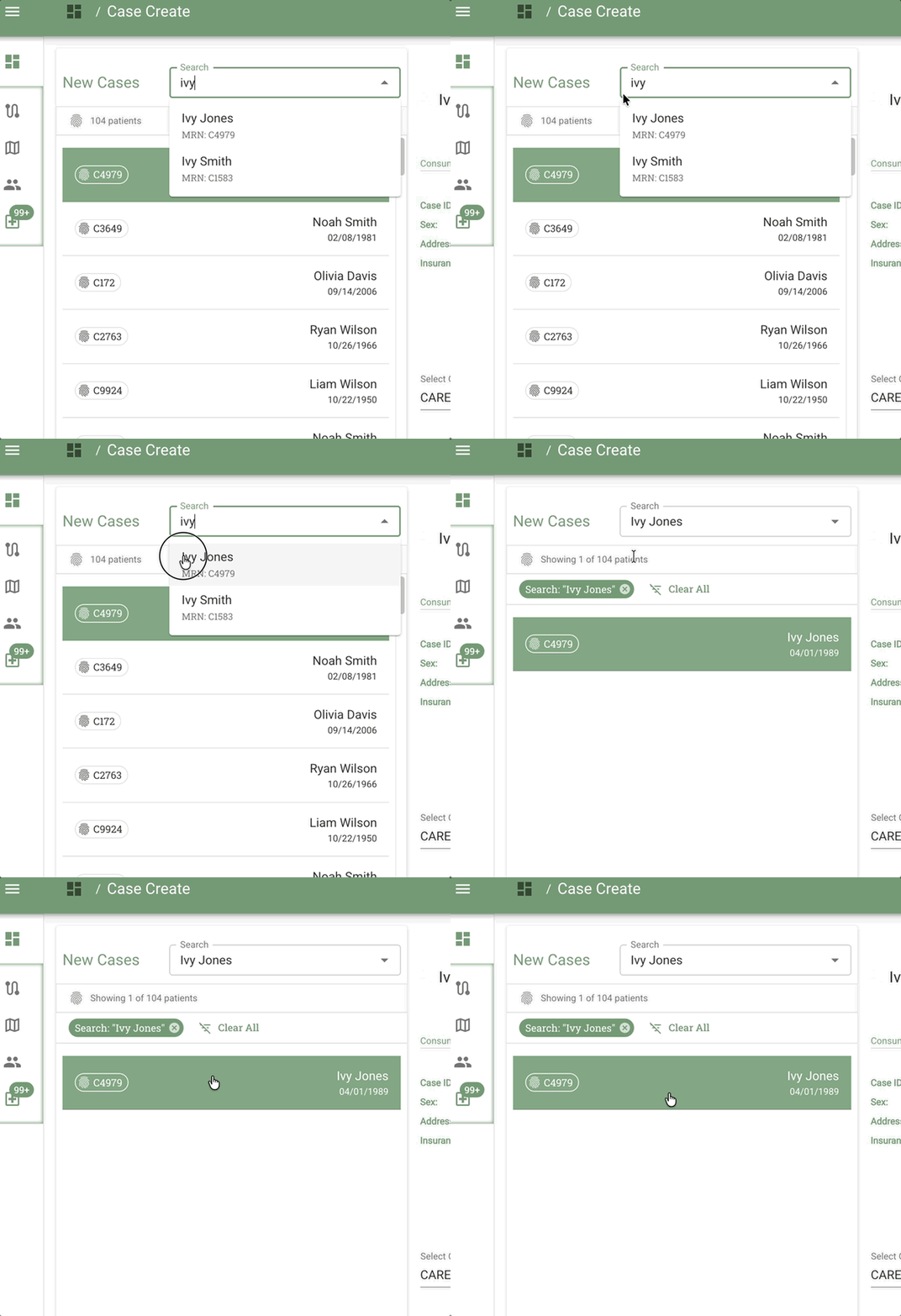
Search Filter Chip
When you search for someone, a green chip appears showing your active search term:
Format: Search: "[Your Search Term]"
Example: Search: "Kate Johnson"
To clear your search:
- Click the X icon on the chip, or
- Click the "Clear All" button
Either action returns you to the full list of all eligible patients.
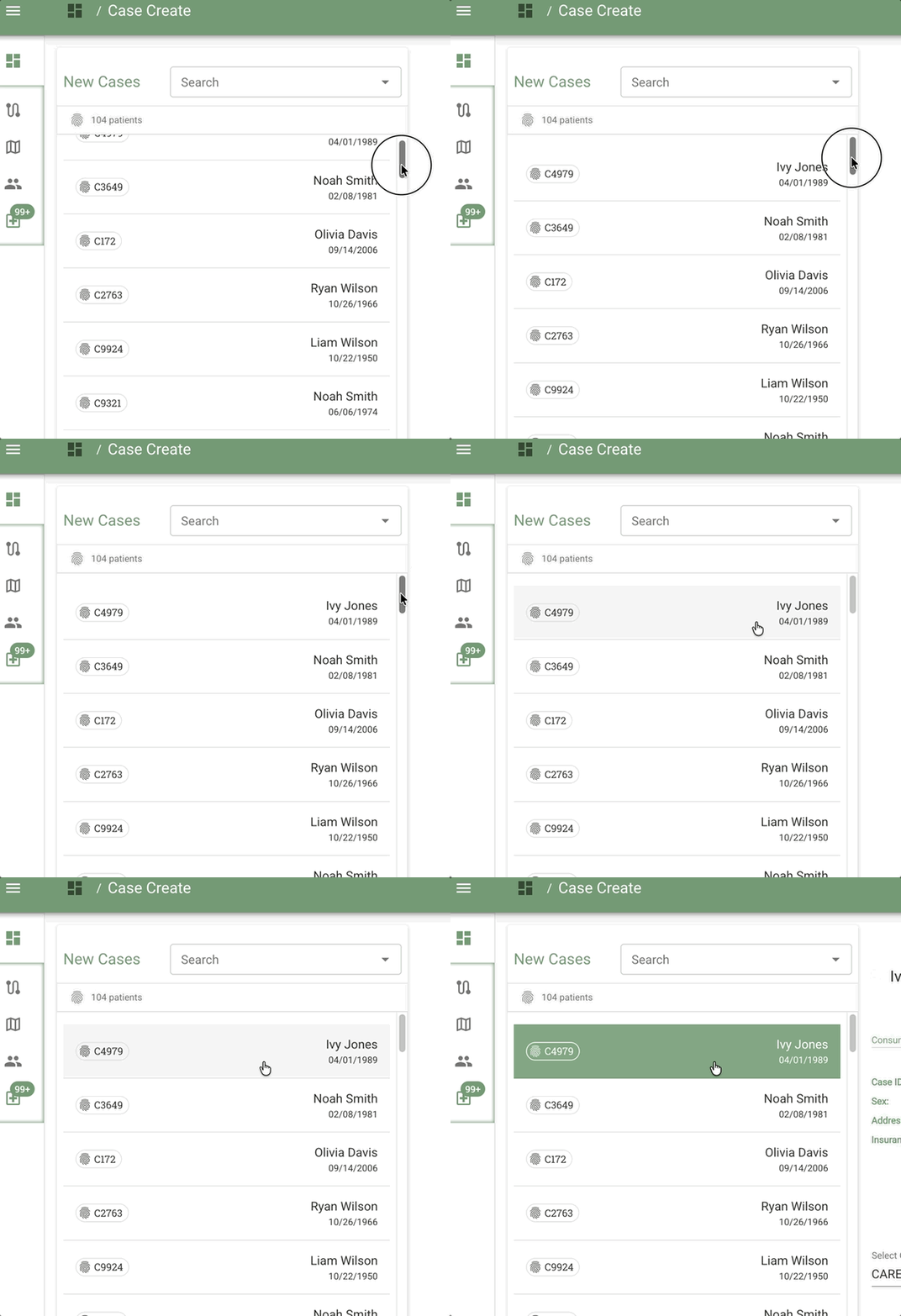
Selecting a Client from the List
Once you've searched or browsed the list, click on a client to select them:
What happens when you select:
- Client becomes highlighted in the left sidebar list
- Right panel loads with client details for verification
Right Panel States
Before selecting anyone:
The right panel displays helpful text:
Select someone from the list to continue
No panel header is shown in this state.
After Selection - Verifying Client Details:
The right panel shows detailed information about the selected client (e.g., Ivy Jones):
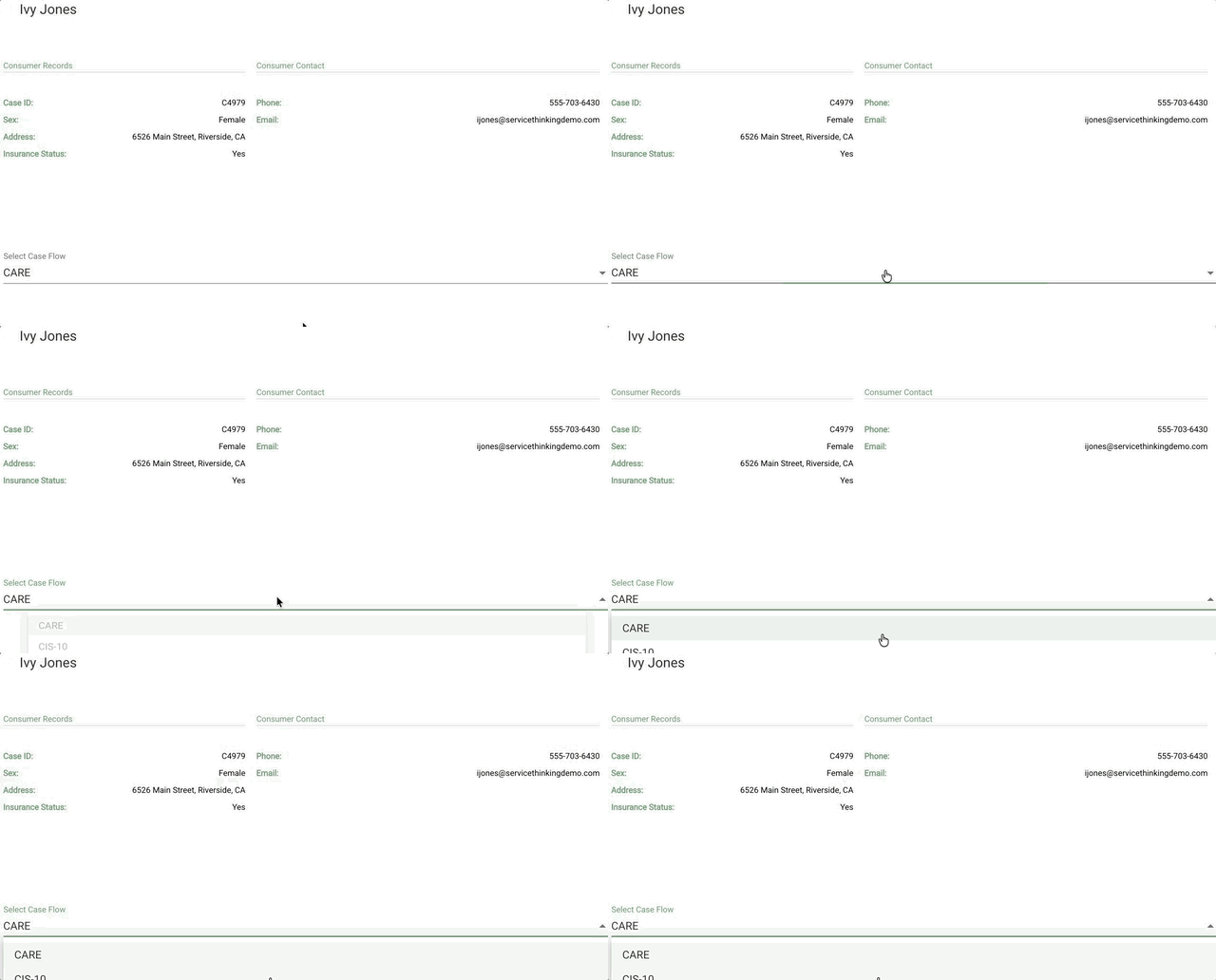
Information Displayed:
- Client Name: Full name of selected individual
- MRN: Medical Record Number (e.g., 4979)
- Demographics: Age, gender, other identifying information
- EHR Data: Additional context from electronic health records
Purpose: This verification step ensures you've selected the correct individual before creating a case.
Selecting a Case Flow and Creating the Case
After verifying the client details, you'll select a workflow template and create the case:
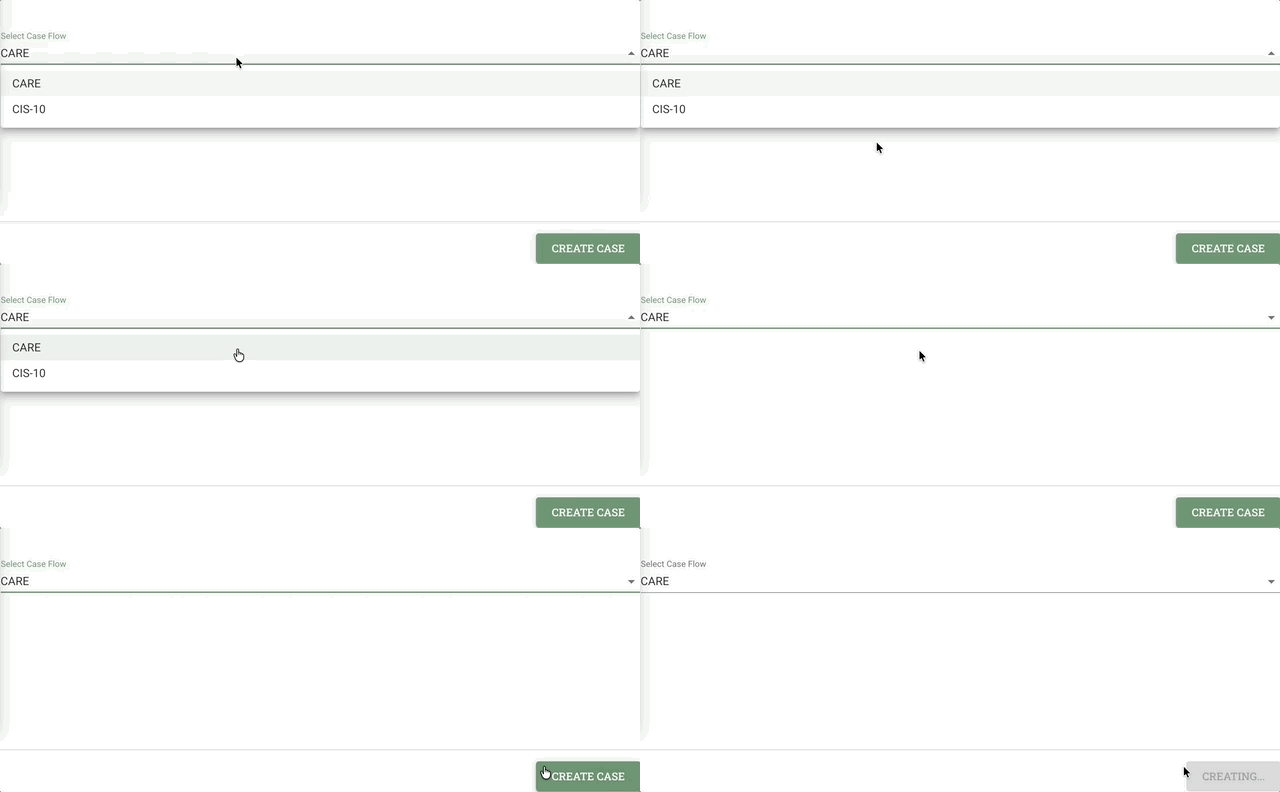
Steps:
- Click "Select Case Flow" dropdown in the right panel
- Choose a workflow template from the list (e.g., "CARE", "Assessment", etc.)
- Each flow represents a different process template with specific tasks and stages
- Click "Create Case" button to finalize
- Success confirmation appears
- Page refreshes - The left panel clears and no client remains selected, allowing you to create another case immediately
Completing Case Creation
Create Button:
What happens when you click Create:
- ✅ Success toast appears: "Case Created"
- ✅ Form behavior: User remains on Create Case form (does not auto-navigate away)
- ✅ Left panel resets: The selection clears and the search/list returns to default state
Why the form resets: Allows you to quickly create multiple cases in succession without manually clearing your previous selection
To create another case:
- The left panel is already cleared and ready
- You can immediately search for another eligible individual
- Repeat the process
Where Your New Cases Appear
After creating a case, here's where you'll find it:
Dashboard: My Caseload
Your case always appears here - My Caseload shows your comprehensive list of all cases you're involved with.
What you'll see:
- Name: Client name (may be masked based on your credentials)
- Status: Current Group/phase the case is in
- Process Type: The process flow you selected (e.g., "CARE")
- Maintainer: Your name (since you created it, you're the first maintainer)
- Active Contributors: Team members with assigned work
Special indicator: When a case is Completed, the row will be grayed out with a checkmark.
For more details, see Dashboard: My Caseload.
Dashboard: My Overview (Swimlanes)
You'll see the case in your swimlanes because you're the maintainer. The case will appear in the appropriate swimlane based on its first deadline:
- Past Due (Red) - If the first deadline has already passed
- Priority (Yellow) - If the first deadline is within 30 days (or no deadline set)
- Upcoming (Grey) - If the first deadline is beyond 30 days
Important: Even if you don't have any specific tasks assigned to you yet, you'll still see cases you're maintaining in your swimlanes. Being a maintainer means you're responsible for coordinating that stage, so the case stays visible in your dashboard.
After stage handoff: When you advance the case to the next stage and assign a new maintainer, the case will move from your swimlanes (assuming you have no open tasks) but will remain in your My Caseload as a past contributor.
For more details, see Dashboard: My Overview and Swimlanes.
Tips for Success
Search efficiently:
- Use partial MRN if you know even part of the medical record number
- Use partial names - searching "Kate" will find "Kate", "Katherine", and "Katie"
- If you get multiple similar names, double-check the MRN to make sure you've got the right person
Creating multiple cases:
- Stay on the Create Case form to create several cases in a row
- Use the "Clear All" button to reset your search between creations
- The form is designed to help you work efficiently without constant navigation
Understanding patient count:
- The fingerprint icon shows how many eligible individuals are in your list
- If the count seems lower than expected, check with your administrator about the EHR sync
After creating a case:
- Head to My Caseload to verify the case appears correctly
- Click the client name to open the Case Page and start working
- Refresh your Dashboard to see updated badge counts
FAQ
Q: Who can create cases in Conduit?
A: Case creation permissions are determined by your organization administrator. Any user in your organization can potentially create cases - it's not restricted by role. However, you may need EHR credentials to see patient information depending on your organization's security settings.
Important: Even if you don't have EHR credentials to view sensitive information, you can still create a case. You just won't see details about the individual you're creating it for - the information will be masked according to your permissions.
Q: Why can't I see patient names or details?
A: Conduit honors your organization's EHR permissions without bypassing security controls. If you see masked information (like "Patient #####" instead of a name), it means your current credentials don't grant access to that sensitive data.
This is a reflection of what's established in your EHR system. Because of your organization's security settings, you may or may not have the correct credentials to view sensitive information, and Conduit will default to masking that data.
To request access: Contact your organization's IT department or ServiceThinking support if you believe you need additional permissions.
Q: What does "eligible for a Conduit case" mean?
A: Eligible individuals are patients who have already been vetted by your organization to be tracked in Conduit. This list comes through a pre-approved pipeline from your EHR system, meaning everyone who appears in the New Cases panel has been cleared by your organization to receive case management services.
Q: Can I create a case for someone not in the EHR list?
A: No. All individuals in the New Cases list have been pre-approved by your organization. If someone is missing from the list who you believe should be eligible, please contact your organization's IT department or ServiceThinking to discuss adding them to the approved data stream.
Q: What happens after I create a case?
A: When you create a case, you automatically become the first maintainer - the person responsible for coordinating that stage. The case will appear:
- In My Caseload - Always visible in your comprehensive case list
- In My Overview (Swimlanes) - Only if you have assigned tasks or are the maintainer
- On your team's dashboards - Cases appear for team members based on their assigned tasks and maintainer role
Q: Can I delete a case I created by mistake?
A: Case deletion is not available through the Conduit interface. All eligible individuals have already been vetted to be tracked in Conduit, so accidental case creation is rare.
If you need to discuss case deletion, please contact your organization's IT department or ServiceThinking directly. This typically requires a larger conversation about data management and audit trails.
Q: Why doesn't the badge count update immediately after I create a case?
A: This is current system behavior. The Create Case icon badge count updates when you navigate away from the Create Case form. This allows you to focus on creating multiple cases in succession without interruption.
Q: Can I edit a case immediately after creating it?
A: Yes! After the "Case Created" toast appears, navigate to Dashboard: My Caseload, find your new case, and click the client name to open the Case Page. From there you can start working on tasks, upload documents, add team members, and more.
Q: What happens if I search for a patient and get no results?
A: This could mean:
- The search term doesn't match any patient names or MRNs in your list
- Try broadening your search by using fewer characters
- The patient may not be in your organization's pre-approved data stream
- The patient may already have been created by you or a colleague
If someone should be eligible but isn't appearing, contact your IT department about the EHR sync.
Q: Will other team members see the case I just created?
A: It depends on how you assign the case:
- You as maintainer: The case appears in your My Caseload and swimlanes
- After stage handoff: When you advance to the next stage and assign a new maintainer, that person will see it in their dashboard
- Task assignment: Any team member with assigned tasks will see the case in their views
Even maintainers with no currently assigned tasks will still see cases they're maintaining in their dashboard and swimlanes.
Related Documents
- Cases Overview - Understanding case structure and concepts
- Dashboard: My Caseload - Viewing all your cases
- Dashboard: My Overview - Viewing cases by deadline urgency
- Case Page Overview - Working with individual cases
- Process Flows Guide - Understanding workflow templates
- FAQ: Navigation & Access - Create Case button location and accessibility