Dashboard: My Caseload
Last Updated: February 4, 2026
Document ID: UG-DASH-006
Version: 1.2
Overview
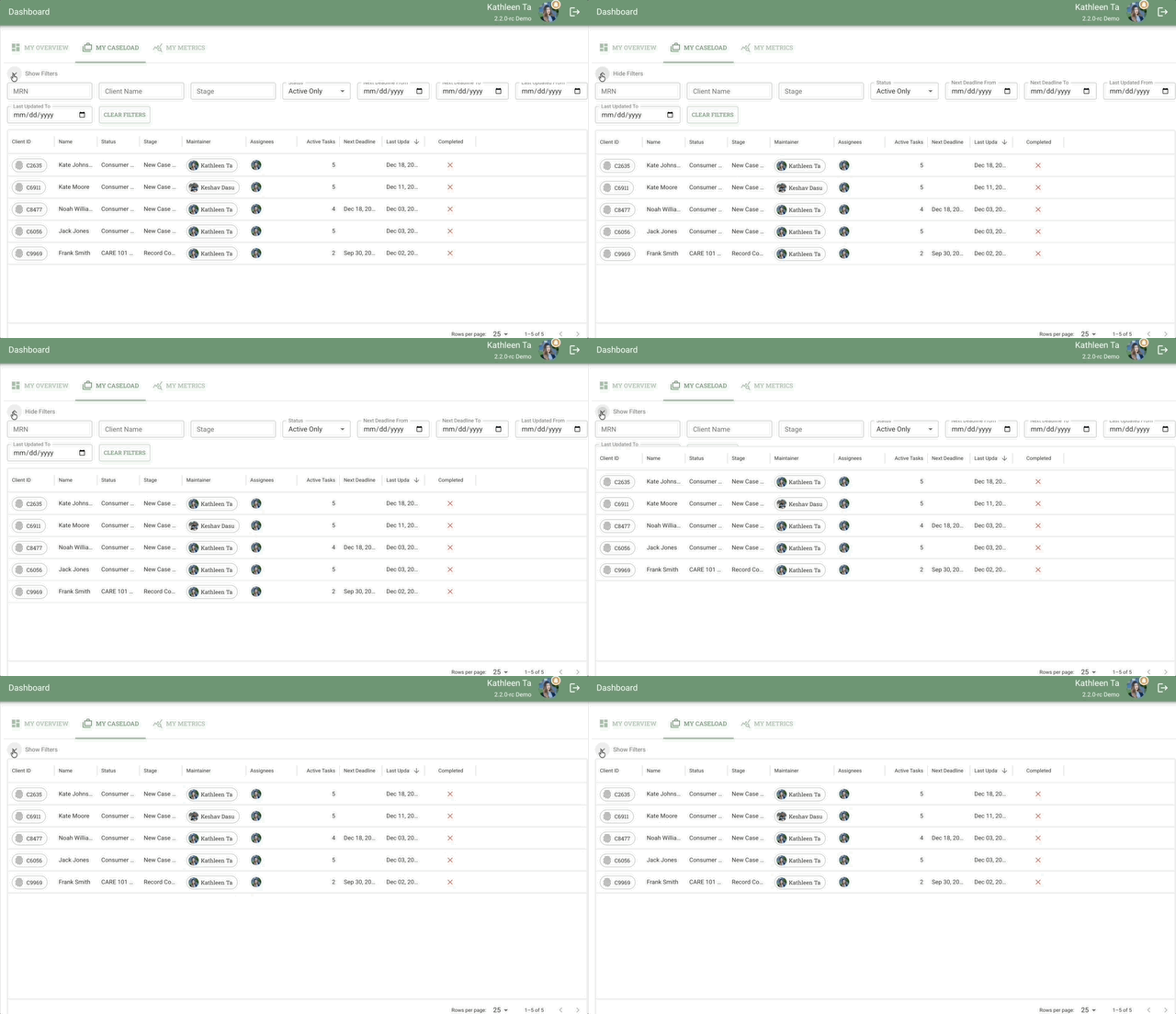
The Dashboard: My Caseload tab displays all your assigned cases in a table format, providing a comprehensive list view with sortable columns, filters, and customization options. This view gives you detailed information at a glance and powerful tools to organize your workload.
Why use My Caseload:
- See detailed case information - View multiple data points in a table format
- Sort and filter - Organize cases by any column to find what you need
- Customize your view - Show/hide columns based on your workflow
- Track metrics - See active tasks, deadlines, and flow duration at a glance
- Quick access - Click any row to open the Case Page
Key Terms
| Term | Definition |
|---|---|
| Client ID | Unique identifier assigned to each client |
| Status | Current case state (Active, On Hold, Closed) |
| Stage | Current position in the process flow workflow |
| Maintainer | Case owner or primary coordinator responsible for the case |
| Assignees | Team members currently assigned tasks on the case |
| Active Tasks | Number of tasks currently in progress or not started |
| Next Deadline | Date of the nearest upcoming deadline |
| Last Update | Timestamp of the most recent activity on the case |
| Flow Duration | Number of days since the case was created |
| Completed | Completion status or date (definition pending confirmation) |
| Column Operator | Filter condition (e.g., "is", "contains", "greater than") |
| Filter Value | Specific value to match when filtering |
Scope
This guide covers:
- Understanding table columns and their meanings
- Sorting cases by different criteria
- Filtering your caseload
- Customizing column visibility
- Opening cases from the table view
This guide does NOT cover:
- Case cards in swimlane view (see Dashboard: My Overview)
- Working within a Case Page (see Case Page Overview)
Who should use this guide:
- Case Managers
- Care Coordinators
- Supervisors
- Team Members who need detailed caseload views
What you need before starting:
- Active Conduit account with case manager or coordinator role
- View permissions for cases in your workspace
- Cases assigned to you as owner or contributor
Related Documents
- Dashboard: My Overview - Viewing cases in swimlanes by deadline urgency
- Creating Cases - Starting new client cases
- Case Cards - Understanding case card elements
- Case Page Overview - Working within a single case
- Cases Overview - Understanding case concepts and hierarchy
How To Use My Caseload
Accessing My Caseload
Navigate to the table view of your assigned cases.
Steps:
- Click the Dashboard icon in the left toolbar (4-square grid icon)
- The Dashboard opens showing the My Overview tab by default
- Click the My Caseload tab at the top of the dashboard
- Located next to "My Overview" tab
- Displays your cases in table format
Pagination:
The My Caseload table displays one page of cases at a time. Use the pagination controls at the bottom of the table to:
- Navigate between pages (previous/next buttons)
- Jump to a specific page number
- Modify the number of rows displayed per page
💡 Tip: Adjust the rows per page setting to view more or fewer cases at once based on your preference and screen size.
Understanding Table Columns
Each column displays specific information about your cases.
Available Columns:
| # | Column Name | Description | Hover Tooltip |
|---|---|---|---|
| 1 | Client ID | Unique identifier for the client | TBD |
| 2 | Name | Client name | TBD |
| 3 | Status | Case status (Active, On Hold, Closed) | TBD |
| 4 | Stage | Current process stage in workflow | TBD |
| 5 | Maintainer | Case owner/primary coordinator | TBD |
| 6 | Assignees | Team members with assigned tasks | TBD |
| 7 | Active Tasks | Number of tasks currently in progress | TBD |
| 8 | Next Deadline | Date of next upcoming deadline | TBD |
| 9 | Last Update | Timestamp of most recent activity | TBD |
| 10 | Flow Duration | Days since case was created | TBD |
| 11 | Completed | Completion status or date | TBD |
To see column descriptions:
- Hover your mouse over any column header
- A tooltip will appear with contextual information about that column
Sorting Cases
Organize your caseload by sorting on any column.
Available Sort Options:
Each column header provides these sorting options:
- Sort by ASC (gray up arrow icon) - Sort in ascending order (A-Z, 0-9, oldest to newest)
- Sort by DESC (gray down arrow icon) - Sort in descending order (Z-A, 9-0, newest to oldest)
Steps to sort:
- Locate the column you want to sort by
- Click the column header or the sorting icon
- Select sort direction:
- Click up arrow for ascending order
- Click down arrow for descending order
- The table refreshes with cases sorted by your selection
Common Sorting Use Cases:
- Next Deadline (ASC) - See cases with nearest deadlines first
- Last Update (DESC) - See most recently updated cases at top
- Active Tasks (DESC) - See cases with most tasks needing attention
- Flow Duration (DESC) - Identify longest-running cases
- Name (ASC) - Find cases alphabetically by client name
⚠️ Important: Sort settings reset when you navigate away from the Dashboard: My Caseload tab. Your sort preferences are not saved between sessions.
Filtering Cases
Narrow down your caseload by applying filters to specific columns.
Filter Components:
- Column - Select which column to filter by (all 11 columns available)
- Operator - Choose the comparison method (currently "is")
- Value - Enter or select the filter value
Steps to filter:
- Click the filter icon (gray filter icon) in any column header
- The filter dialog opens
- Select your filter criteria:
- Column: Choose from dropdown (defaults to clicked column)
- Operator: Select comparison type (e.g., "is")
- Filter Value: Enter or select the value to match
- Click Apply to activate the filter
- The table displays only cases matching your criteria
Available Filters:
You can filter by any of the 11 columns:
- Client ID - Filter by specific client identifier
- Name - Filter by client name
- Status - Filter by Active, On Hold, or Closed
- Stage - Filter by specific process stage
- Maintainer - Filter by case owner name
- Assignees - Filter by assigned team members (select a team member from dropdown to view all cases assigned to that person)
- Active Tasks - Filter by number of tasks
- Next Deadline - Filter by deadline date range
- Last Update - Filter by update timeframe
- Flow Duration - Filter by days in workflow
- Completed - Filter by completion status
Example Filters:
- Show only Status is "Active" - See active cases only
- Show only Maintainer is "Your Name" - See cases you own
- Show only Assignees is "Mia Williams" - View all cases assigned to a specific team member
- Show only Active Tasks is "5" - Find cases with exactly 5 tasks
⚠️ Important: Filter settings reset when you navigate away from the Dashboard: My Caseload tab. Your filters are not saved between sessions.
💡 Tip: Combine sorting and filtering for powerful caseload management. For example, filter by "Status is Active" then sort by "Next Deadline ASC" to see your most urgent active cases first.
Hiding and Managing Columns
Customize which columns are visible in your table view.
Column Management Options:
Each column header provides:
- Filter (gray filter icon) - Apply filters to column (see Filtering Cases)
- Hide column (gray eye with diagonal slash icon) - Temporarily hide the column from view
- Manage columns (gray 3 vertical bar icon) - Open column management panel
To hide a single column:
- Click the column header you want to hide
- Click the "Hide column" icon (eye with slash)
- The column disappears from the table
- Other columns expand to fill the space
To manage all columns:
- Click the "Manage columns" icon (3 vertical bars) on any column header
- The column management panel opens
- Check/uncheck columns to show or hide them
- Reorder columns by dragging (if supported)
- Click Apply or Done to save changes
Common Column Configurations:
- Quick View: Show only Name, Status, Active Tasks, Next Deadline
- Detailed View: Show all columns for comprehensive information
- Supervisor View: Focus on Maintainer, Assignees, Stage, Flow Duration
- Task-Focused View: Show Name, Active Tasks, Next Deadline, Last Update
⚠️ Important: Column visibility settings may reset when you navigate away from the Dashboard: My Caseload tab. Check if your preferences are saved between sessions.
Opening a Case
Access the full Case Page from the table view.
Steps:
- Locate the case you want to open in the table
- Click anywhere on the case row
- Any element within the row is clickable
- The cursor changes to a pointer on hover
- The Case Page opens in the main content area
- You can now work with tasks, documents, and case details
Alternative Methods:
- Right-click on a case row for context menu options (if available)
- Double-click on a case row for faster access (if supported)
📘 Learn more: See Case Page Overview for working within an individual case.
To return to My Caseload:
- Click the Dashboard icon (4-square grid) in the left toolbar
- Your My Caseload tab should still be selected
- Or click the My Caseload tab if you're on My Overview
💡 Tip: Use keyboard shortcut Alt + ← (Windows) or Cmd + ← (Mac) to navigate back to your caseload quickly.
Frequently Asked Questions
Q: Why is the Name column blank for some cases?
A: If the Name column is blank (no client name or asterisks displayed), this indicates an access permission issue. You do not have the required permissions to view that client's name.
Action Required: Contact your system administrator to request appropriate access permissions for those cases.
Note: If the Name column shows no value, this indicates an access permission issue - you don't have the required permissions to view that client's name.
Q: What's the difference between Maintainer and Assignees?
A: The Maintainer is the primary case owner responsible for overall case coordination. Assignees are team members who have specific tasks assigned to them on the case. One person can be both maintainer and assignee. A case has one maintainer but can have multiple assignees.
Q: Why do my sort and filter settings disappear?
A: Sort and filter settings currently reset when you navigate away from the Dashboard: My Caseload tab. This is expected behavior—your preferences are not saved between sessions. You'll need to reapply your sorting and filtering each time you return to this view.
Q: What does "Active Tasks" count include?
A: The Active Tasks number shows tasks that are either "Not Started" or "In Progress" on the case. Completed tasks are not included in this count. This helps you identify cases that need work and how much work is pending.
Q: What is "Flow Duration" measuring?
A: Flow Duration shows the number of days since the case was created. This helps you identify cases that have been in the system for a long time and may need attention or review. (Note: Confirm if this is days since creation or days in current stage)
Q: Can I save my column configuration?
A: Check with your system administrator whether column visibility preferences are saved. This feature may vary based on your Conduit configuration. If preferences aren't saved, you'll need to reconfigure your column view each session.
Q: How do I see closed cases?
A: By default, My Caseload may show only active cases. To see closed cases:
- Apply a filter: Status is "Closed"
- Or remove status filters to see all cases regardless of status
Q: Can I export this table to a spreadsheet?
A: Export functionality may be available depending on your permissions and Conduit configuration. Look for an export button in the interface, or check the [Reporting Guide] for data export options.
Q: Can I delete a case?
A: Case deletion is not available through the Conduit interface. All cases shown in your caseload have been pre-approved by your organization's IT team to be tracked in Conduit.
If you need to discuss case deletion or removal, please contact either:
- Your organization's IT department
- ServiceThinking support directly
This typically requires a larger conversation about data management, audit trails, and your organization's data pipeline, so it's handled outside of the standard Conduit workflow.
Q: What does a grayed-out row with a checkmark mean?
A: When a case is Completed, the entire row in My Caseload will be grayed out and display a checkmark indicator. This helps you quickly identify which cases have finished their workflow and are no longer active.
What's Next?
Now that you understand the My Caseload table view, explore these related topics:
- Dashboard: My Overview - View cases in swimlane format for visual priority management
- Case Page Overview - Learn how to work within individual cases
- Case Cards - Understand case card elements in My Overview tab
- Cases Overview - Learn case management concepts
Quick Tips for Success:
- Use My Caseload when you need detailed data across multiple cases
- Use My Overview (swimlanes) for visual priority and deadline awareness
- Combine filtering and sorting to focus on urgent items
- Customize columns based on your role and workflow needs
- Return to My Caseload regularly to track case metrics
Need Help?
Can't find what you're looking for?
- Check Dashboard: My Overview for swimlane view documentation
- Review Case Page Overview for working within cases
- Contact your supervisor for permission issues with case access
- Refer to your organization's workflow documentation for process-specific questions