Swimlanes
Last Updated: November 20, 2025
Document ID: UG-DASH-003
Version: 1.0
Overview
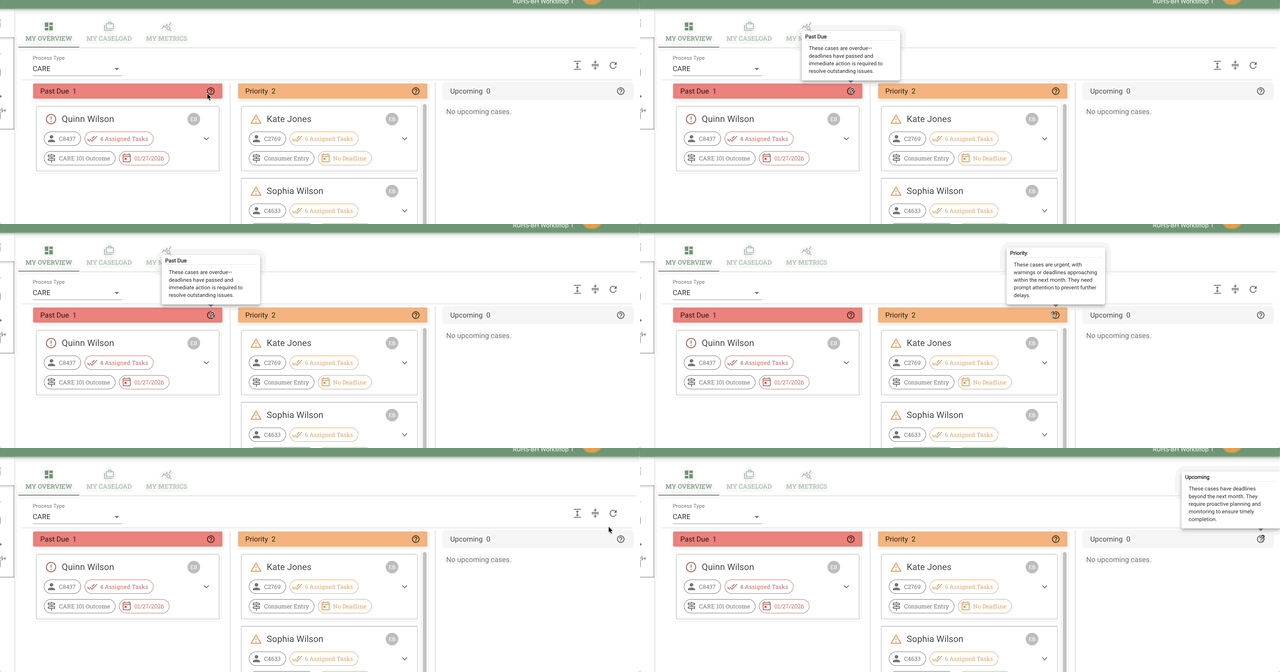
Swimlanes are vertical columns on your Dashboard that organize cases by deadline urgency, creating a visual priority system that helps you focus on what needs attention most. Think of swimlanes as an automatic triage system—cases flow between lanes as deadlines approach, ensuring urgent work never gets lost in your caseload.
Why swimlanes matter:
- Automatic prioritization - Cases sort themselves based on deadlines
- Visual workflow - See your workload organized from urgent to future planning
- Prevent missed deadlines - Past Due items are always visible
- Efficient time management - Address cases in order of urgency
Key Terms
| Term | Definition |
|---|---|
| Swimlane | Vertical column organizing cases by deadline urgency |
| Past Due | Cases with deadlines that have already passed |
| Priority | Cases with deadlines approaching within the next 30 days |
| Upcoming | Cases with deadlines beyond 30 days or no set deadline |
| Auto-sorting | Automatic movement of cases between swimlanes as deadlines change |
Scope
This guide covers:
- Understanding the three default swimlanes
- How cases are sorted and moved automatically
- Best practices for working with swimlanes
- Visual organization strategies
- Swimlane-based workflow approaches
This guide does NOT cover:
- Creating custom swimlanes (admin-level configuration)
- Filtering options (available in My Caseload and My Performance tabs)
- Case card details (see Case Cards)
Who should use this guide:
- Case Managers
- Coordinators
- Supervisors
- Any team member managing multiple cases
What you need before starting:
- Active Conduit account with dashboard access
- Assigned cases with varying deadline dates
- Basic understanding of case cards
Related Documents
How To Use Swimlanes
The Three Default Swimlanes
Your Dashboard organizes all cases into three swimlanes based on deadline urgency.
Swimlane Structure (left to right):
-
Past Due (leftmost)
- Red swimlane color with red warning indicators (❗️)
- Case card elements (Assigned Tasks, Deadlines) display in red
- Deadlines have already passed
- Requires immediate corrective action
-
Priority (middle)
- Yellow swimlane color with yellow warning indicators (⚠️)
- Case card elements (Assigned Tasks, Deadlines) display in yellow
- Deadlines within the next 30 days, or no deadline set
- Needs prompt attention to stay on track
-
Upcoming (rightmost)
- Gray swimlane color with no status indicators
- Case card elements (Assigned Tasks, Deadlines) display in gray
- Deadlines beyond 30 days
- Focus on planning and proactive work
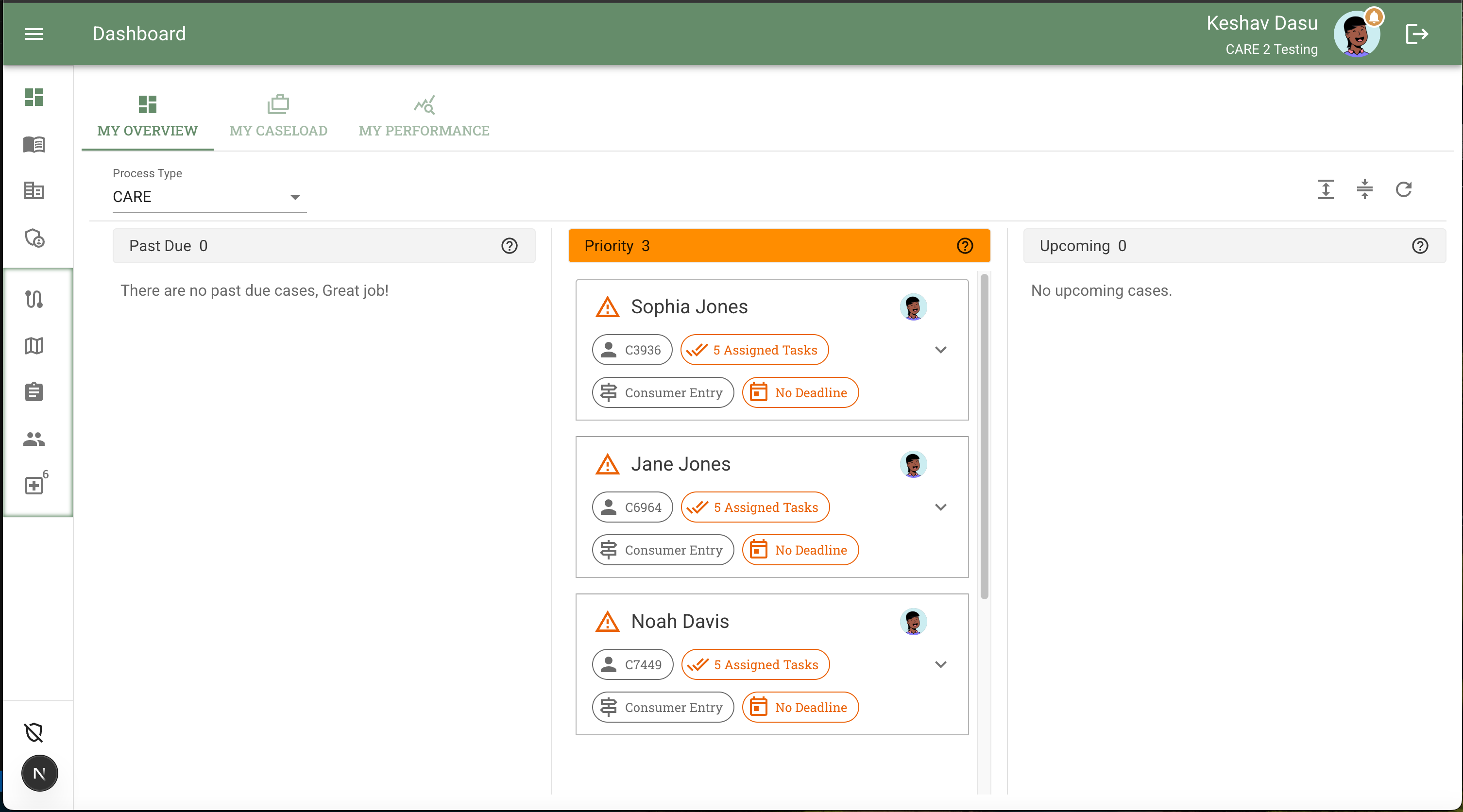 Screenshot showing all three swimlanes with case cards
💡 Tip: The left-to-right arrangement mirrors the natural reading flow, making urgent cases the first thing you see.
Past Due Swimlane
Cases in the Past Due swimlane require immediate attention to resolve overdue items.
Characteristics:
- Swimlane color: Red
- Status indicator: Red warning icon (❗️)
- Case card elements: Assigned Tasks and Deadlines display in red
- Deadline status: One or more deadlines have passed
- Display format: "Past Due" or "Overdue by X days" labels
- Priority level: Highest urgency—address first
What causes a case to be Past Due:
- Task deadline has passed without completion
- Stage deadline exceeded
- Required action not taken by due date
- External deadline (court date, appointment) has passed
Common actions for Past Due cases:
-
Assess the situation:
- Determine why the deadline was missed
- Check for blocking issues or dependencies
-
Take immediate action:
- Complete overdue tasks
- Update deadlines if circumstances have changed
- Communicate with stakeholders about delays
-
Document resolution:
- Add case notes explaining the delay
- Record completion of overdue items
- Update case status as appropriate
⚠️ Important: Cases remain in Past Due until all overdue items are resolved, even if they have future deadlines. This ensures you address problems before moving forward.
Priority Swimlane
Cases in the Priority swimlane have approaching deadlines that require prompt attention.
Characteristics:
- Swimlane color: Yellow
- Status indicator: Yellow warning icon (⚠️)
- Case card elements: Assigned Tasks and Deadlines display in yellow
- Deadline status: Due within the next 30 days, or no deadline set
- Display format: "Due in X days" or "No Deadline"
- Priority level: Medium-high urgency—address soon
Time-based stages in Priority:
| Days Until Deadline | Urgency Level | Recommended Action |
|---|---|---|
| No deadline set | Requires attention | Review and set deadline, or actively work case |
| 15-30 days | Monitor closely | Begin active work, ensure resources available |
| 8-14 days | Increased focus | Make significant progress, remove blockers |
| 1-7 days | High priority | Complete tasks, finalize deliverables |
Types of cases in Priority:
-
Deadline-based cases:
- Cases with deadlines within the next 30 days
- Time-sensitive tasks requiring prompt action
- Approaching milestones or deliverables
-
No-deadline cases:
- Cases without a set deadline appear in Priority by default
- Displayed as "No Deadline" in the Deadline field
- Require review to determine if a deadline should be set
- May include ongoing support cases or cases awaiting next steps
Strategic approach to Priority cases:
-
Week-ahead planning:
- Review all Priority cases at the start of each week
- Schedule time blocks for cases due in 7-14 days
- Identify potential issues or resource needs
-
Active monitoring:
- Check Priority cases daily
- Move cases requiring immediate attention to top of work queue
- Communicate with contributors about approaching deadlines
-
Proactive escalation:
- Flag cases at risk of missing deadlines
- Request additional resources or support if needed
- Adjust deadlines if circumstances have changed
💡 Tip: Set a personal threshold (e.g., 10 days) when you begin intensive focus on Priority cases. This prevents last-minute rushes.
Upcoming Swimlane
Cases in the Upcoming swimlane have distant deadlines or no set deadline, allowing for planning and preparation.
Characteristics:
- Swimlane color: Gray
- Status indicator: None
- Case card elements: Assigned Tasks and Deadlines display in gray
- Deadline status: Due beyond 30 days
- Display format: "Due in X days"
- Priority level: Lower urgency—plan ahead
Types of cases in Upcoming:
-
Long-term planning cases:
- Multi-month processes
- Cases awaiting external input
- Staged workflows with distant next steps
-
Newly created cases:
- Just initiated with future deadlines
- Initial setup not yet complete
Best practices for Upcoming cases:
-
Regular review:
- Check Upcoming cases weekly
- Ensure no cases are stalled or forgotten
- Verify deadlines are still accurate
-
Advance preparation:
- Gather required documents early
- Schedule appointments or meetings
- Identify potential obstacles
-
Resource planning:
- Allocate team members in advance
- Order supplies or arrange services
- Coordinate with external parties
💡 Tip: Don't ignore Upcoming cases. Regular check-ins ensure they don't surprise you when they move to Priority.
How Cases Move Between Swimlanes
Conduit automatically moves cases between swimlanes as deadlines approach or pass.
Automatic transitions:
Upcoming → Priority
- Triggered when: Deadline reaches 30 days away
- Case immediately appears in Priority swimlane
- Status indicator appears: yellow warning icon (⚠️)

Priority → Past Due
- Triggered when: Deadline passes
- Case immediately appears in Past Due swimlane
- Status indicator changes from yellow to red warning icon (❗️)

Past Due → Priority or Upcoming
- Triggered when: Overdue items are completed AND remaining deadline is updated
- Case moves to appropriate swimlane based on next deadline
- Status indicator updates accordingly (yellow ⚠️ for Priority, none for Upcoming)
What triggers swimlane changes:
- Daily automated review at midnight (system time)
- Manual deadline updates by users
- Task completion that resolves overdue items
- Process stage advancement with new deadlines
⚠️ Note: Swimlane position reflects the nearest upcoming deadline. If a case has multiple deadlines, it's sorted by whichever comes first.
Swimlane-Based Workflow Strategy
Use swimlanes to structure your daily and weekly work routines.
Daily workflow approach:
Morning (9:00 AM - 10:00 AM):
- Review Past Due swimlane
- Identify any new Past Due cases
- Address highest-priority overdue items
- Plan resolution strategies
Mid-morning (10:00 AM - 12:00 PM): 2. Work Priority cases (due in 1-7 days)
- Complete urgent tasks
- Remove blockers
- Coordinate with team members
Afternoon (1:00 PM - 3:00 PM): 3. Work Priority cases (due in 8-30 days)
- Make steady progress
- Prepare for upcoming deadlines
- Document work
Late afternoon (3:00 PM - 5:00 PM): 4. Quick Upcoming review
- Check for cases approaching Priority threshold
- Update case notes
- Plan next day's priorities
Weekly workflow approach:
Monday:
- Comprehensive review of all three swimlanes
- Set weekly goals for Priority and Past Due
- Identify cases that will move to Priority this week
Tuesday-Thursday:
- Execute daily workflow
- Focus on Past Due and near-term Priority
- Monitor case movement between lanes
Friday:
- Clear any remaining Past Due items
- Get ahead on Priority cases due next week
- Review Upcoming for cases needing attention
💡 Tip: Adapt this strategy to your organization's rhythms. Some teams may have specific "catch-up" days or deadline patterns.
Tips & Best Practices
💡 Swimlane Management:
- Start left, move right - Always address Past Due before Priority, Priority before Upcoming
- Set personal thresholds - Define when you begin intensive work on Priority cases (e.g., 10 days out)
- Time block by swimlane - Dedicate specific times to each swimlane in your daily schedule
- Weekend prep - End each week with zero Past Due items when possible
💡 Preventing Past Due Cases:
- Early warning system - Flag Priority cases at risk of missing deadlines
- Buffer time - Aim to complete tasks 2-3 days before deadline
- Identify blockers early - Address obstacles when cases enter Priority, not when they become Past Due
- Communicate proactively - Alert team members and supervisors when deadlines are at risk
💡 Efficient Prioritization:
- Triage within swimlanes - Not all Past Due cases are equal—address most critical first
- Batch similar tasks - Group similar work across cases to increase efficiency
- Delegate strategically - Use swimlane view to identify cases for reassignment
- Review dashboard multiple times daily - Cases can move between lanes as work is completed
💡 Team Coordination:
- Share swimlane screenshots - Use in team meetings to discuss workload
- Balance Past Due across team - Redistribute if one member has disproportionate Past Due load
- Celebrate empty Past Due - Recognize team achievement when Past Due swimlane is clear
Common Issues & Solutions
Cases Not Moving Between Swimlanes
Problem: A case that should be Past Due or Priority is still showing in the wrong swimlane.
Solution:
- Refresh your browser (F5 or Cmd/Ctrl + R)
- Check the case deadline—ensure it's set correctly
- Verify the task associated with the deadline is still active
- Wait for automated system update (occurs at midnight)
- Contact support if the issue persists after 24 hours
Too Many Past Due Cases
Problem: The Past Due swimlane is overwhelming with many cases.
Solution:
-
Triage immediately:
- Sort by deadline to identify most overdue items
- Switch to My Caseload tab for filtering options to organize by assignment or process type
- Identify cases that can be quickly resolved
-
Request help:
- Flag for supervisor review
- Request case redistribution among team
- Identify cases that can be reassigned
-
Extend deadlines appropriately:
- For cases with legitimate reasons for delay, update deadlines
- Document why deadlines are being extended
- Communicate with stakeholders
-
Prevent future accumulation:
- Increase focus on Priority cases
- Address blockers earlier in process
- Request additional resources if chronically overloaded
No Cases in Priority Swimlane
Problem: All cases are either Past Due or Upcoming, with nothing in Priority.
Solution:
This may indicate:
- All cases are ahead of schedule - Good work! Continue monitoring Upcoming
- Deadlines are too distant - Review whether cases need more near-term deadlines
- Cases are stalled - Check if Upcoming cases are actually progressing
Swimlane Appears Empty
Problem: One or more swimlanes show no cases.
Solution:
- Verify you have cases assigned to you
- Confirm you have appropriate permissions to view cases
- Check if your organization uses custom swimlane configurations
- Try switching to the My Caseload or My Performance tabs for different views
Frequently Asked Questions
Q: Can I customize swimlane names or thresholds?
A: Swimlane configuration is typically managed at the organization level by administrators. Contact your admin about customization options for your workspace.
Q: Why do some cases appear in multiple swimlanes?
A: Cases should only appear in one swimlane at a time. If you see duplicates, refresh your browser or contact support.
Q: How often do cases automatically move between swimlanes?
A: The system checks case deadlines and updates swimlane positions daily at midnight (system time). Manual deadline updates may trigger immediate swimlane changes.
Q: Can I manually move a case to a different swimlane?
A: No. Swimlane position is automatically determined by deadlines. To change a case's swimlane, update the relevant deadline in the case details.
Q: What happens to cases with no deadline?
A: Cases without deadlines appear in the Priority swimlane by default and display "No Deadline" in the Deadline field. This ensures they receive attention and aren't forgotten. Consider setting appropriate deadlines for these cases to maintain effective time management.
Q: Do closed or archived cases appear in swimlanes?
A: No. Only active cases appear in the Dashboard Overview swimlanes. To view closed or archived cases, switch to the My Caseload or My Performance tabs.
Q: Can I hide or collapse a swimlane?
A: Swimlanes are always visible in the Dashboard Overview. For more customized views, use the My Caseload or My Performance tabs.
Related Topics
- Dashboard: My Overview - Understanding the full dashboard interface
- Dashboard: My Caseload - Table view with filtering
- Case Cards - Reading case information at a glance
- Case Management - Working with cases in detail
- Task Management - Working with case tasks
Need Help?
Can't find what you're looking for?
- Search documentation - Use the search bar at the top of this page
- Contact Support - Email support@servicethinking.com or use the in-app help chat
Next Steps:
- Learn about Case Cards to understand case information display
- Explore My Caseload tab for filtering and table view options
- Read Task Management to work with case tasks
- Review Case Management Guide for comprehensive case handling