Activity
Last Updated: April 15, 2026
Document ID: UG-CASEPAGE-005
Version: 1.2
Overview
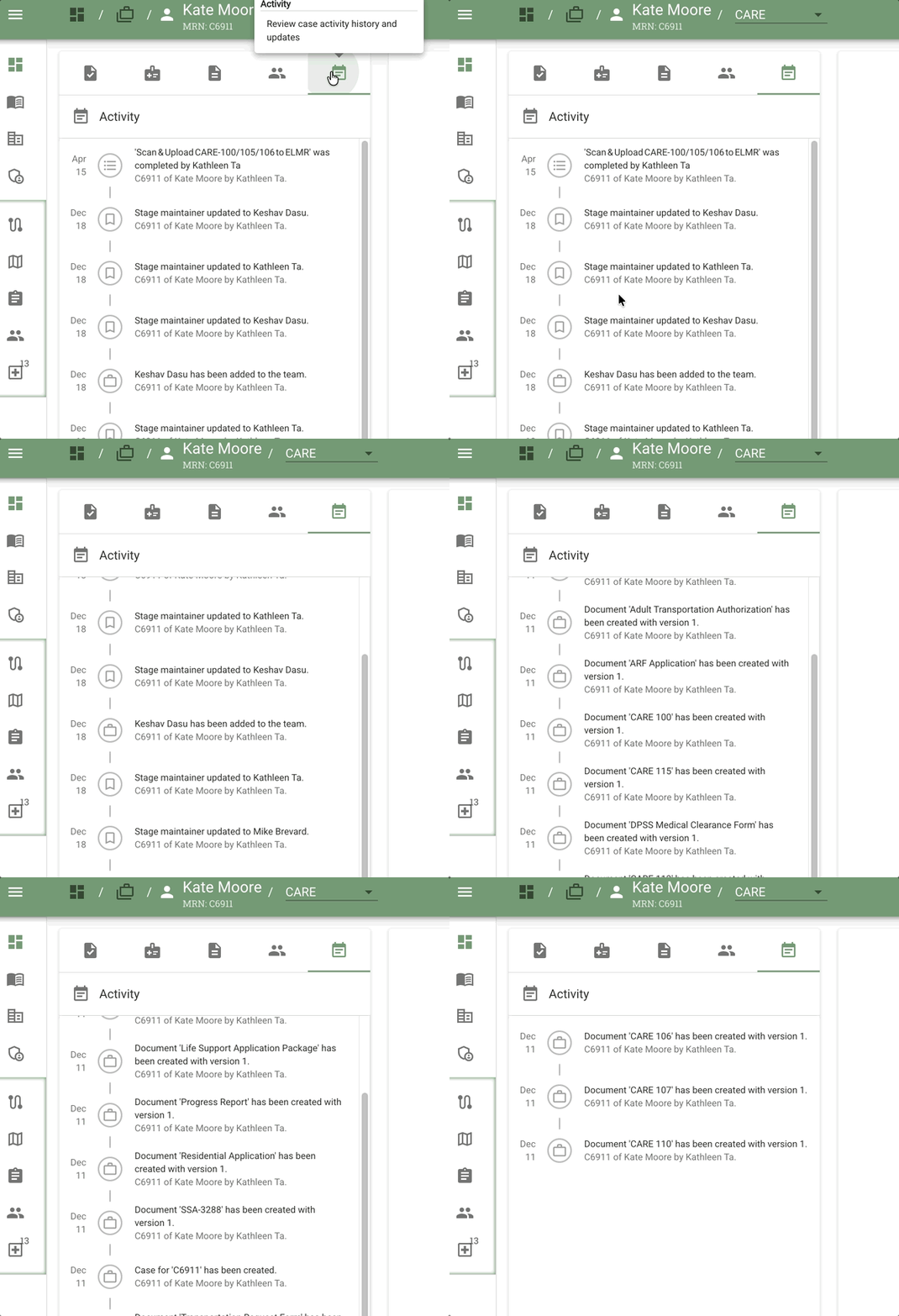
The Activity tab on the Case Page displays a chronological list of case events, with the most recent activity shown first. This provides a quick summary of what's happened on the case recently.
Note: This is different from the History feature, which shows the full Episode → Group → Stage → Task hierarchy in a pop-out view. The Activity tab is for recent event monitoring, while History shows complete workflow structure.
This guide will cover:
- Understanding activity events
- Viewing recent case changes
- Activity vs History distinction
- Event types displayed
Key Terms
| Term | Definition |
|---|---|
| Activity | Chronological list of case events in the tab |
| History | Full-screen pop-out showing Episode/Group/Stage/Task hierarchy (accessed via tab) |
| Event | A recorded action on the case (task completion, team change, document action) |
Understanding the Activity Tab
Location: Activity tab in the Left Sidebar
Display: Chronological list with most recent events at the top
Event Types
The Activity tab captures and displays several types of case events:
Task Completions
Example:
"Task 'Court Response – CARE‑101' has been completed on the case. C9969 of Frank Smith by Karan Dorn."
What it shows:
- Task name that was completed
- Case identifier (C9969)
- Client name (Frank Smith)
- User who completed it (Kathleen Ta)
Team Changes
Example:
"Karan Dorn has been added to the team. C9969 of Frank Smith by Mike Brevard."
What it shows:
- Team member added or removed
- Case identifier
- Client name
- User who made the change
Document Actions
Example:
"Document 'CARE 115' has been created with version 1. C9969 of Frank Smith by Mike Brevard."
What it shows:
- Document name
- Action taken (created, updated, deleted)
- Version number (if applicable)
- Case identifier
- Client name
- User who performed the action
Activity vs History: What's the Difference?
Activity Tab
- Location: Activity tab in the Left Sidebar
- Purpose: Quick view of recent events
- Display: Simple chronological list
- Scope: Recent case actions only
- Format: Text-based event log
History Feature
- Location: Accessed via Process Navigation Bar → Process view → History button (bottom-left)
- Purpose: Complete workflow structure view
- Display: Full-screen pop-out
- Scope: Entire Episode → Group → Stage → Task hierarchy
- Format: Structured tree view with Episode count, info tooltips
For detailed information about the History feature, see Case Page Overview - History Feature.
Tips and Best Practices
Monitoring Recent Work:
- Check Activity tab to quickly see what teammates have done recently
- Use it to verify task completions without opening each task
- Look for document uploads or team changes
Understanding Workflow Structure:
- For complete case workflow, use History feature instead
- Activity shows "what happened," History shows "how the case progresses"
Audit Trail:
- Activity provides a basic audit log for compliance
- Each event shows who performed the action and when
- Useful for tracking team member contributions
Frequently Asked Questions
Q: What's the difference between Activity and History?
A: Activity is a simple chronological event list in the Activity tab (left sidebar). History is a full-screen pop-out showing the complete Episode/Group/Stage/Task workflow structure, accessed via the History button in the Process view.
Q: Can I filter Activity events?
A: Filtering is not currently available in the Activity tab, but the icons may help you visually identify the event or task type you're looking for. If filtering would be helpful for your workflow, you may request this feature from your system administrator.
Q: How far back does Activity history go?
A: Activity history goes back to the beginning of the episode in this process.
Q: Can I export Activity data?
A: Export functionality is not currently available. If you need to export Activity data for reporting or compliance purposes, you may request this feature from your system administrator.
Related Documents
- Case Page Overview - Understanding the 4-section Case Page layout
- Task Management - Working with tasks on the Case Page
- Documents and Resources - Managing case documents
- Team - Managing case team members
- Cases Overview - Workflow Hierarchy - Understanding Episode/Group/Stage/Task structure