History
Last Updated: April 15, 2026
Document ID: UG-CASEPAGE-006
Version: 1.1
Overview
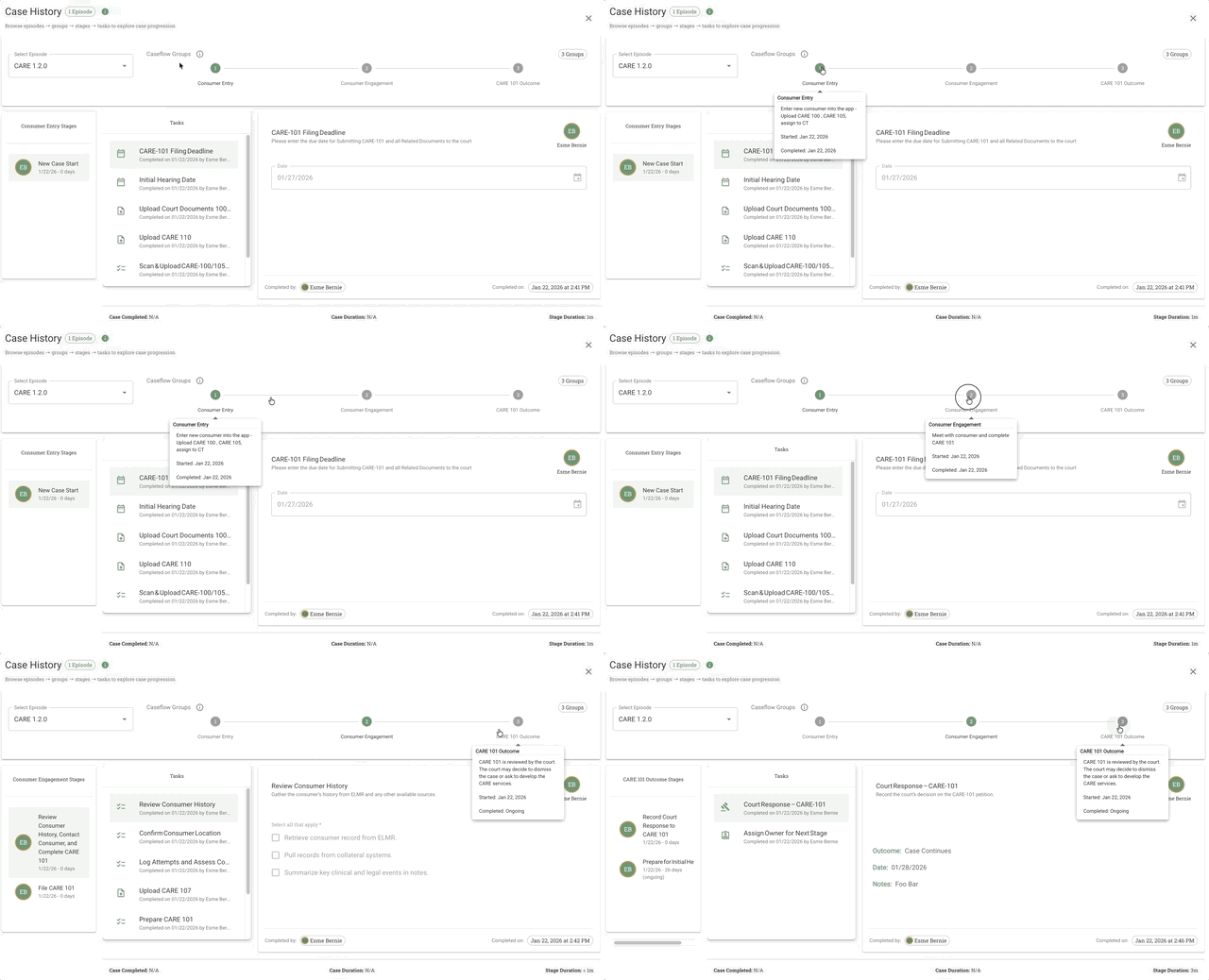
The Case History page provides a structured, stage-based view of a case's lifecycle within a selected Episode. It allows users to review progress, view and complete tasks, and track timing and ownership across stages.
This page is designed to answer three key questions:
- Where is the case in its lifecycle?
- What tasks are required at this stage?
- Who completed what, and when?
Note: This is different from the Activity tab, which shows a simple chronological event list. History shows the complete workflow structure organized by Episode → Group → Stage → Task, while Activity shows recent events in a linear timeline.
This guide will cover:
- Accessing the Case History page
- Understanding the page layout and interface elements
- Navigating the Episode/Group/Stage/Task hierarchy
- Viewing and completing tasks within stages
- Tracking completion metadata and audit history
- Understanding duration and timing metrics
Key Terms
| Term | Definition |
|---|---|
| History | Full-screen pop-out showing complete case timeline with Episode/Group/Stage/Task hierarchy |
| Episode | Top-level container representing a Process Flow version or migration event |
| Group | Collection of stages executed together within an episode |
| Stage | Individual workflow step containing tasks |
| Task | Specific work item completed within a stage |
| Activity | Individual event record (task completion, document upload, team change, etc.) - see Activity |
| Migration | Process of moving a case to a different Process Flow version, creating a new episode |
Accessing the Case History Page
Location: Process Navigation Bar → Process view → History button (bottom-left)
Steps to open:
- Navigate to any Case Page
- In the Process Navigation Bar, click the process name (e.g., "CARE") to open the Process view
- Click the green History button in the bottom-left of the Main Content Panel
- A full-screen Case History page opens
Page Layout and Features
The Case History page is organized into distinct sections that work together to provide a complete view of case progress:
Episode Selector (Top Left)
The Episode Selector is a dropdown menu located in the top left corner of the page.
Purpose: Allows you to select which Episode (Process Flow version) to view.
Example: If a case has been migrated from CARE 1.0.0 to CARE 1.2.0, the dropdown will display both Episodes as options:
- CARE 1.2.0 (current)
- CARE 1.0.0 (previous)
Behavior:
- Click the dropdown to see all available Episodes for this case
- Select an Episode to view its complete stage-based history
- The selected Episode determines what appears in the rest of the page
Caseflow Groups (Top Center)
The Caseflow Groups section displays the major structural phases of the selected Episode.
Purpose: Provides a high-level orientation to the case's overall structure.
Display: Shows all Groups in the Process Flow as labeled sections (e.g., "Consumer Entry", "Assessment", "Case Management").
Behavior:
- Clickable navigation - Click any Group number/name to jump directly to that Group's stages
- Helps you understand the major phases the case moves through
- Complements the detailed stage navigation in the Left Panel
Stage Indicator (Centered Above Task Panel)
The Stage Indicator shows the name of the currently selected or active stage.
Purpose: Clearly identifies which stage you're viewing tasks for.
Location: Centered directly above the Middle Panel (Tasks List).
Example: "Consumer Entry Stage" or "Initial Assessment"
Behavior:
- Updates when you click a different stage in the Left Panel
- Provides context for the tasks displayed below it
Left Panel: Stage Navigation
The Left Panel displays all stages within the selected Episode in sequential order.
Display Elements for Each Stage:
- Stage Name (e.g., "Consumer Entry Stage")
- Date Range - When the stage was active (if completed) or when it started (if current)
- Status Indicator - Visual marker showing:
- Current/Active stage
- Completed stages
- Upcoming stages (if any)
Behavior:
- Scrollable - If there are many stages, you can scroll to view all
- Clickable - Click any stage to view its tasks in the Middle Panel
- Sequential Order - Stages appear in the order they occur in the Process Flow
Purpose: Provides chronological navigation through the case's lifecycle.
Middle Panel: Tasks List
The Middle Panel displays all tasks associated with the currently selected stage.
Display Elements for Each Task:
- Task Name (e.g., "Verify Client ID", "Upload Documentation")
- Completion Status Icon:
- ✓ Checkmark = Completed
- ○ Open circle = Incomplete
- Task Type Indicator - Icon showing task type (Checklist, Document Upload, Date Entry, etc.)
Behavior:
- Scrollable - If stage has many tasks, scroll to view all
- Clickable - Click any task to view its details in the Right Panel
- Visual Hierarchy - Completed tasks may appear grayed or with distinct styling
Purpose: Shows what tasks are required for the selected stage and which are complete.
Right Panel: Task Detail View
The Right Panel displays comprehensive information about the currently selected task.
Display Elements:
- Task Title (e.g., "Upload Proof of Income")
- Task Description - Detailed instructions or context
- Data Fields - All fields associated with the task (varies by task type):
- Checklist items
- Uploaded documents with preview/download
- Date entries
- Text entries
- Outcome selections
- Assigned User - Who the task was assigned to
- Completion Metadata (if task is completed):
- Completed By - User who marked it complete
- Completion Date/Time - When it was completed
- Attribution Note - If completed on behalf of another user
Key Distinction: Assigned vs. Completed By
- Assigned User: The team member responsible for the task
- Completed By: The user who actually marked it complete (may differ if completing on behalf of someone)
Example:
Assigned: Sarah Chen
Completed By: KD (on behalf of Sarah Chen)
Completed: Feb 18, 2026 at 2:30 PM
Purpose: Provides complete audit trail and task data for compliance and review.
Why this matters: This provides auditability and traceability for compliance and review purposes. The system tracks both who was assigned and who actually completed the work.
Footer Information
The footer displays timing metrics for the case and current stage.
Location: Bottom of the Case History page
Display Elements:
- Case Completed - Overall case completion date (if case is closed), or "N/A" if not yet completed
- Case Duration - Total time from case creation to completion, or "N/A" until closed
- Stage Duration - Time spent in currently selected stage, or "N/A" if still ongoing
Example:
Case Completed: Feb 15, 2026
Case Duration: 45 days
Stage Duration: 3 days
Purpose: Provides performance metrics and timing analysis for reporting and compliance. These metrics update once stages or the case are completed.
Understanding the Hierarchy Structure
The Case History page displays a structured hierarchy that organizes case information:
Episode (Process Flow version)
  └─ Group (Collection of stages - major workflow phase)
      └─ Stage (Workflow step)
          └─ Task (Work item)
What each level shows:
- Episode: Process Flow name and version (e.g., CARE 1.2.0)
- Group: Major phase name (e.g., "Consumer Entry"), stages contained, completion status
- Stage: Stage name, date range, duration, status (ongoing/completed)
- Task: Task title, assignee, completion date/time, who completed it, detailed task data
Functional Purpose of the Case History Page
The Case History page enables users to:
- Track case progress across structured stages
- Identify required next steps by viewing incomplete tasks
- Monitor task completion status at a glance
- View audit history showing who completed tasks and when
- Enter structured data required for court or procedural deadlines
- Maintain compliance with versioned workflows (Episodes)
- Review historical episodes if case has been migrated to different Process Flows
Intended User Experience
For users, the Case History page should be understood as:
- A progress tracker - See where the case is in its lifecycle
- A compliance and documentation log - Track what's required and what's done
- A historical record - Review complete case activity with audit trail
- A task workspace - View and complete required tasks
Key Benefits:
- Reduces ambiguity by clearly separating stage navigation, task completion, detailed task input, and audit history
- Provides structure through Episode/Group/Stage organization
- Ensures accountability by tracking who completed what and when
- Supports compliance with complete audit trail and timing metrics
Navigating Between Episodes
Single Episode (No Migration)
If a case has never been migrated, you'll see:
- Number of Episodes
- Current Process Flow with all groups and stages
- Complete history from case creation to present
Multiple Episodes (After Migration)
When a case has been migrated to a different Process Flow, Case History preserves all previous episodes:
Episode Navigation:
- Click the episode count chip at the top
- Select which episode to view from dropdown
- Previous episodes show historical data (read-only)
- Current episode shows active Process Flow
What's preserved in previous episodes:
- All groups and stages from the old Process Flow
- Complete task history with completion dates and assignees
- Team member contributions and decisions made
- Duration metrics for each stage
Expanding and Collapsing Hierarchy
Expand/Collapse Controls:
- Click arrow icon (▶/▼) next to each level to expand/collapse
- Click level name to expand that specific item
- Expand All / Collapse All buttons (if available) to control entire view
Navigation Tips:
- Start at Episode level and drill down through Groups → Stages → Tasks
- Expand only sections you need to review
- Use search (if available) to find specific tasks or team members
Viewing Task Details
What you see for each task:
- Task Title - Name of the task
- Assignee - Who was assigned to complete it
- Completed By - Team member who actually completed it (may differ from assignee)
- Completion Date/Time - When task was finished
- Activity Log - Detailed events (opens, edits, submissions)
Why "Completed By" matters:
A task assigned to one person can be completed by another team member on their behalf. The History shows both the assignee and the actual person who did the work.
Example: Task assigned to Sarah Chen, but completed by User KD on her behalf. History shows:
- Assignee: Sarah Chen
- Completed By: KD
- Sarah receives credit, KD is acknowledged for data entry
Use Cases
Compliance and Audit
Review complete case progression:
- See every task completed, by whom, and when
- Verify required steps were followed
- Generate audit reports showing workflow adherence
- Track decision points and outcomes
Post-Migration Review
Understand case journey after process changes:
- Compare previous Process Flow to current one
- See what work was done before migration
- Identify data carried over vs. new requirements
- Understand why case was migrated
Team Performance Analysis
Track contributions across team members:
- See who completed which tasks
- Identify workload distribution
- Review time spent in each stage
- Understand collaboration patterns
Case Handoff and Training
Bring new team members up to speed:
- Review complete case history quickly
- Understand previous decisions and work
- See workflow patterns and precedents
- Learn from past case examples
History vs Activity: Key Differences
| Aspect | History Feature | Activity Accordion |
|---|---|---|
| View Type | Structured hierarchy (Episode → Group → Stage → Task) | Simple chronological list |
| Access | Process Navigation Bar → Process view → History button → Full-screen pop-out | Activity tab in the Left Sidebar |
| Purpose | Complete workflow structure and audit trail | Recent event monitoring |
| Scope | All episodes, groups, stages, tasks | Recent events only |
| Organization | Hierarchical, expandable tree | Linear timeline (newest first) |
| Read-only | Yes (especially for previous episodes) | Yes (view-only event log) |
| Best for | Auditing, compliance, understanding complete case journey | Quick checks on recent activity |
| Shows | "How the case progresses through workflow" | "What happened recently" |
For Activity tab details, see Activity Guide.
Exiting History View
To close History and return to Case Page:
- Click the gray "x" button in the top right corner of the History pop-out
- You'll return to the Case Page at the same location you were before opening History
- The Process Navigation Bar returns to the Process view
Tips & Best Practices
💡 Use History for complete audit trails: When you need to see everything that happened on a case, use History instead of Activity. History provides the structured, comprehensive view.
💡 Check previous episodes after migration: If you see "Episode 2 of 2" or higher, review previous episodes to understand what work was done under the old Process Flow.
💡 Verify task completion for compliance: Use History to confirm all required tasks were completed before advancing to next stages or closing cases.
💡 Compare assignee vs. completed by: If you notice tasks were completed by someone other than the assignee, this may indicate team collaboration or workload balancing.
💡 History is read-only for a reason: Previous episodes cannot be edited to preserve data integrity. This ensures an accurate historical record for auditing.
Frequently Asked Questions
Q: What's the difference between History and Activity?
A: History is a full-screen, structured view showing the complete Episode/Group/Stage/Task hierarchy. Activity is a simple chronological event list in the Activity tab. Use History for comprehensive audits, Activity for quick recent event checks.
Q: Can I edit tasks in previous episodes?
A: No. Previous episodes are read-only to preserve historical data integrity. You can only view what was completed. Current episode tasks can be edited if the stage is still active.
Q: Why does my case show multiple episodes?
A: Each episode represents a Process Flow version. If your case has been migrated to a different Process Flow (due to version updates or process changes), each migration creates a new episode.
Q: How do I know if a case has been migrated?
A: Look at the episode count chip at the top of the History view. If it shows "Episode 2 of 2" or higher, the case has been migrated at least once. See Process Flows - Migration for more details.
Q: Can I export History data?
A: Export functionality is not currently available in Case History. If you need to export case history data for reporting or compliance purposes, contact your system administrator.
Q: How far back does History go?
A: History goes back to the case creation date and includes all episodes, regardless of how many migrations have occurred. Complete case timeline is preserved.
Q: Who can view case History?
A: Any team member with access to the case can view its History. Permission levels may restrict viewing certain episodes or fields based on organizational policies.
Related Documentation
- Case Page Overview - Overall Case Page structure
- Activity - Recent event monitoring (different from History)
- Tasks - Working with individual tasks
- Process Flows - Understanding workflow structure and migration
- Cases Overview - Episode/Group/Stage/Task hierarchy explanation
Revision History
| Version | Date | Author | Changes |
|---|---|---|---|
| 1.0 | February 18, 2026 | K. Ta | Initial creation of History page |