Team
Last Updated: April 15, 2026
Document ID: UG-CASEPAGE-006
Version: 1.2
Overview
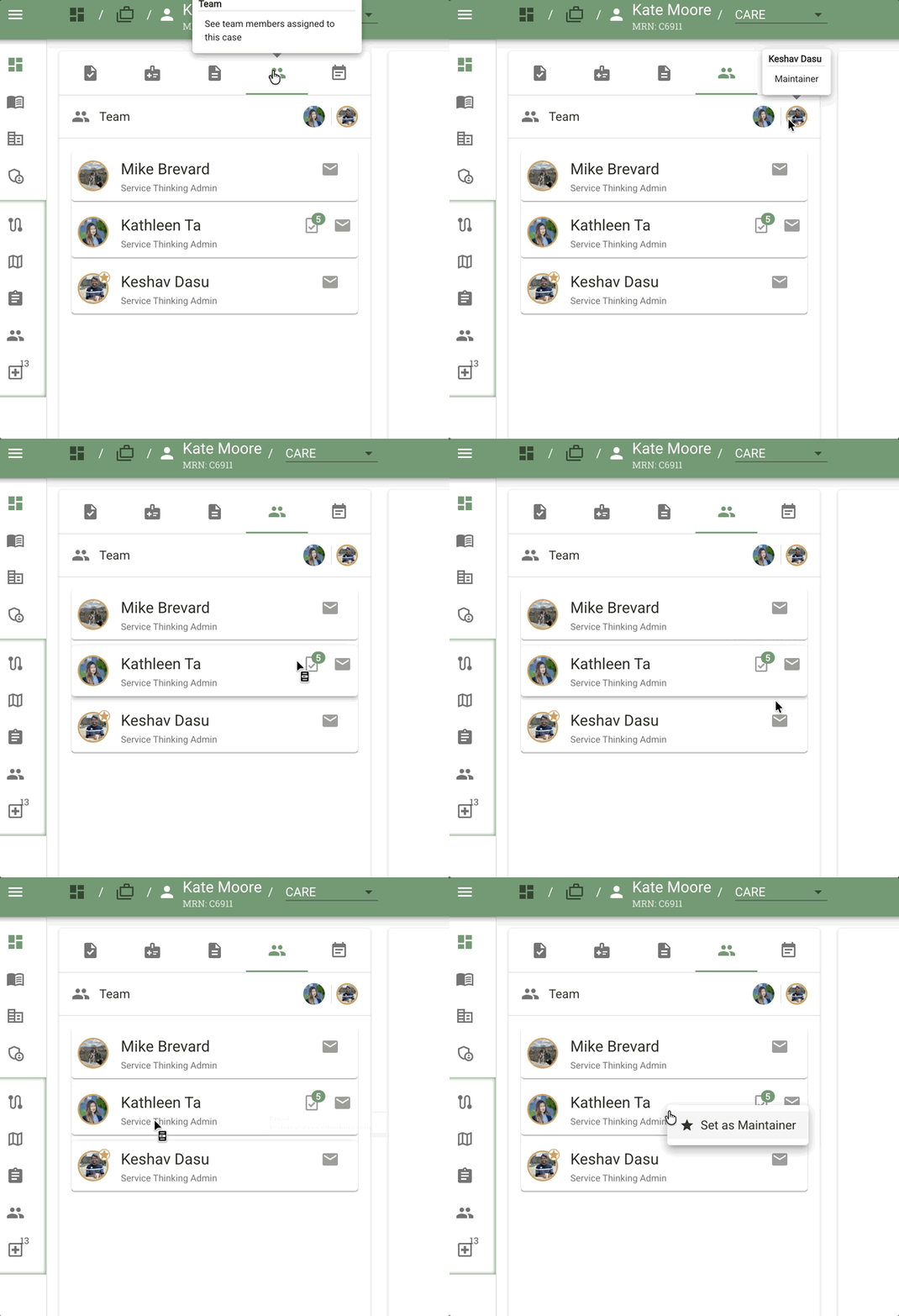
The Team tab on the Case Page displays Active Contributors working on the case. This shows who is currently assigned to the case and their roles, helping team members coordinate work and understand case ownership.
This guide will cover:
- Viewing active contributors
- Understanding team roles (Maintainer vs Assignees)
- Adding or removing team members
- Case permissions and reassignment
- How team changes affect Dashboard views
Key Terms
| Term | Definition |
|---|---|
| Active Contributors | Team members currently assigned to work on the case |
| Maintainer | Primary case owner responsible for overall case management |
| Assignee | Team member assigned to specific tasks within the case |
| Reassignment | Changing who is assigned to a task or case, affects Dashboard visibility |
| Case Permissions | Access rights determining who can view, edit, or manage the case |
| My Caseload | Personal view showing all cases you've been actively involved in (current or historical) |
Understanding Active Contributors
Location: Team tab in the Left Sidebar
What it shows:
- All team members currently assigned to the case
- Each person's role (Maintainer or Assignee)
- Matches the Active Contributors shown on case cards in Dashboard views
Team Roles
Maintainer
Definition: The primary case owner responsible for overall case management
Responsibilities:
- Oversees case progression through stages
- Coordinates team member assignments
- Makes key workflow decisions (e.g., selecting outcomes in Outcome Tasks)
- Often selects the next stage maintainer in Next Stage Tasks
Visual Indicator:
Assignee
Definition: Team member assigned to specific tasks within the case
Responsibilities:
- Completes assigned tasks (visible in "Open" filter)
- Updates task status and progress
- Contributes to specific case activities
Note: Multiple assignees can work on different tasks within the same stage.
Managing Team Members
Changing the Active Maintainer
The Active Maintainer is the designated point of contact for the current stage, responsible for ensuring all tasks are completed and coordinating with upper management on status updates.
Location to access: Case Page → Stage view (Main Content Area)
Navigation:
- Open the case from My Caseload, My Overview, or My Performance (click any element in the case row)
- In the Process Navigation Bar, click Stage to open the Stage view
There are two ways to change the maintainer:
Method 1: Via the Current Maintainer Avatar (Stage view)
Use this when you want to initiate a change from the current maintainer's avatar.
Method 2: Right-Click a Team Member Avatar (Quick Assign)
Use this as a shortcut when you already know who the new maintainer should be.
- In the Stage view, locate the avatar of the team member you want to promote to maintainer (they must not already be the active maintainer)
- Right-click their avatar
- A context menu appears near your cursor: "Set as Maintainer"
- Click "Set as Maintainer"
- The maintainer updates immediately
Method 1: Step-by-Step Reassignment Workflow
1. Locate the maintainer avatar:
- Top right of Section 4 (Task Detail Panel)
- Next to Stage title (e.g., "New Case Start") and stage description
2. Hover over the avatar:
Tooltip appears: "[Firstname Lastname] is the maintainer of this stage. Click or right-click to change the maintainer"
3. Click or right-click the avatar:
"Change Maintainer" button appears below the avatar (where tooltip just was)
4. Click "Change Maintainer" button:
A pop-up dialog opens titled: "Change Stage Maintainer"
Dialog contents:
Blue info box (info icon ):
"What is a Maintainer?"
The maintainer is the designated point of contact for this stage. They are responsible for ensuring all tasks are completed and coordinating with upper management on status updates.
Current maintainer display:
Current maintainer: [Firstname Lastname]
Selection box:
Gray box labeled "Select New Maintainer"
5. Click into "Select New Maintainer" box:
Dropdown menu appears (expands upward or downward) showing:
For each team member:
- Avatar
- First and last name
- Title/Role in organization (e.g., "[Organization] Admin", "BHS" (Behavioral Health Specialist), "OA" (Office Assistant), "Manager")
Search functionality:
- Text changes from "Select New Maintainer" to "Choose a new team member"
- Type to search by first or last name
- X icon appears in text box - click to clear partial text
Searchability enhancement:
- Current user shows "On Case Team" next to their title (if they were previously a maintainer or have open tasks)
6. Select new maintainer from dropdown:
- Click the team member you want to assign
- Dropdown menu disappears
- Selection appears in the box
- X icon still available to clear and start over
Button states:
- "Change Maintainer" button turns green (now enabled)
- "Cancel" button remains available
7. Click green "Change Maintainer" button:
- Dialog disappears
- Page refreshes automatically
- Stage Preview now shows new maintainer's avatar
What Changes After Reassignment
Stage view (Main Content Area):
- New maintainer's avatar appears in top right
- Hover tooltip now shows new maintainer's name
Team Tab Updates:
Team List (Expanded View):
- All previous maintainers now appear in the list (even if they have no open tasks)
- Star icon (⭐️) appears next to current maintainer
- Checkmarked box icon with badge (e.g., ☑️ 5) appears next to team member(s) with open tasks
- Previous maintainer remains in list with task badge if they still have open tasks
Team Tab Header:
- Active Contributors avatars update to show preview
- Tooltip:
"Active Contributors: There are [X] team members assigned work on this stage. To view all past and current contributors open this panel."
Example after reassignment:
- Header avatars show: Previous maintainer (with 5 open tasks) + New maintainer
- Expanded list shows:
- New Maintainer (⭐️ star icon)
- Previous maintainer (☑️ 5 badge for open tasks, "On Case Team")
- Any other historical maintainers
Important Note: Changing the stage maintainer is different from assigning individual tasks (see below).
Assigning Individual Tasks
The stage maintainer can assign individual tasks to other team members without changing stage ownership.
To assign a task:
- Open the task in Task Detail Panel
- Click the "Assign" button
- Select assignee from team member list
- Task appears in assignee's Open tasks
- Maintainer retains overall stage responsibility
Key distinction: Stage maintainer ≠ Task assignee. The maintainer oversees the stage while specific tasks can be delegated to others.
Adding Team Members
Typical workflow:
- Open the Team tab
- Click "Add Team Member" or similar button
- Select user from organization directory
- Assign role (Maintainer or Assignee)
- Optionally assign specific tasks
Removing Team Members
Note: You cannot technically "delete" a case or completely remove historical team members. See "Reassignment vs Removal" below.
Reassignment and Dashboard Visibility
How Reassignment Works
When you reassign a task to another team member:
What happens:
- The task moves from your "Open" tasks to the new assignee's "Open" tasks
- The task is removed from your swimlanes (Past Due, Priority, Upcoming)
- The case remains in your My Caseload view
Why: My Caseload shows all cases you've ever been actively involved in, not just current assignments. This preserves historical context and allows you to track cases you've worked on.
Swimlanes vs My Caseload: Understanding the Difference
Swimlanes (Past Due, Priority, Upcoming)
What they show: Cases with tasks currently assigned to YOU
Filter logic:
- Only cases where you have open tasks
- Organized by deadline status
- Real-time updates when you complete or reassign tasks
When cases disappear: When you complete or reassign all your tasks on that case
My Caseload
What it shows: All cases you've been actively involved in (current AND historical)
Filter logic:
- Cases where you're currently assigned
- Cases where you were previously assigned but reassigned tasks
- Cases where you completed work in the past
When cases disappear: Never (unless case is archived or you never had active assignment)
Why this matters: Provides complete work history for tracking, reporting, and follow-up
For detailed My Caseload documentation, see My Caseload.
Case Status and Time-Based Changes
Case status can change automatically based on time:
Example scenarios:
-
Priority → Past Due
- A case in your Priority swimlane passes its deadline
- The case automatically moves to Past Due swimlane
- No user action required—the system updates based on current date vs deadline
-
Status refers to Group
- Beyond swimlane position (Past Due/Priority/Upcoming), "status" typically refers to which Group the case is in
- Groups represent major workflow phases
- Group changes require explicit workflow actions (completing Next Stage Tasks)
For more on Groups and workflow structure, see Cases Overview - Understanding Workflow Hierarchy.
Case Permissions
General permission concepts:
View permissions:
- See case details and read-only information
- View Team tab and active contributors
Edit permissions:
- Complete assigned tasks
- Update task information
- Add documents
Manage permissions:
- Add or remove team members
- Reassign tasks
- Change case settings
Note: Permissions may vary by organizational role and case type.
Tips and Best Practices
Coordinate with Team:
- Check Team tab before starting work to see who's assigned
- Avoid duplicating effort by confirming task assignments
- Communicate with Maintainer about workload distribution
Reassignment Strategy:
- Reassign tasks promptly if you can't complete them by deadline
- Choose assignees with appropriate expertise for the task type
- Notify teammates when reassigning (don't assume they'll notice immediately)
My Caseload Management:
- Use My Caseload to track all your historical case involvement
- Use swimlanes to focus on current active assignments
- Review Past Due swimlane regularly to avoid missed deadlines
Status Monitoring:
- Cases can move from Priority to Past Due automatically based on time
- Check swimlanes daily to catch time-based status changes
- Past Due doesn't mean "failure"—it means "needs immediate attention"
Frequently Asked Questions
Q: Can I delete a case from my caseload?
A: No, you cannot technically delete cases. Cases remain in your My Caseload if you've ever been actively involved. However, you can reassign your tasks, which removes the case from your swimlanes while keeping the historical record in My Caseload.
Q: If I reassign all my tasks, will the case disappear?
A: The case will disappear from your swimlanes (Past Due, Priority, Upcoming) but will remain in My Caseload because you were once an active contributor.
Q: What's the difference between Maintainer and Assignee?
A: Maintainer is the primary case owner responsible for overall management and coordination. Assignees are team members assigned to specific tasks. One case can have one Maintainer and multiple Assignees.
Q: Why does case status change automatically?
A: Swimlane position (Past Due, Priority, Upcoming) updates automatically based on current date vs task deadlines. This ensures you always see accurate urgency status without manual updates.
Q: What does "Active Contributors" mean exactly?
A: Active Contributors are team members currently assigned to work on the case (Maintainer + Assignees). This matches what appears on case cards in Dashboard views.
Related Documents
- Case Page Overview - Understanding the 4-section Case Page layout
- Task Management - Working with task assignments and filters
- My Caseload - Understanding case visibility and permissions
- Swimlanes - Dashboard organization by deadline status
- Activity - Tracking team changes in Activity tab