Documents
Last Updated: April 15, 2026
Document ID: UG-CASEPAGE-003
Version: 1.3
Overview
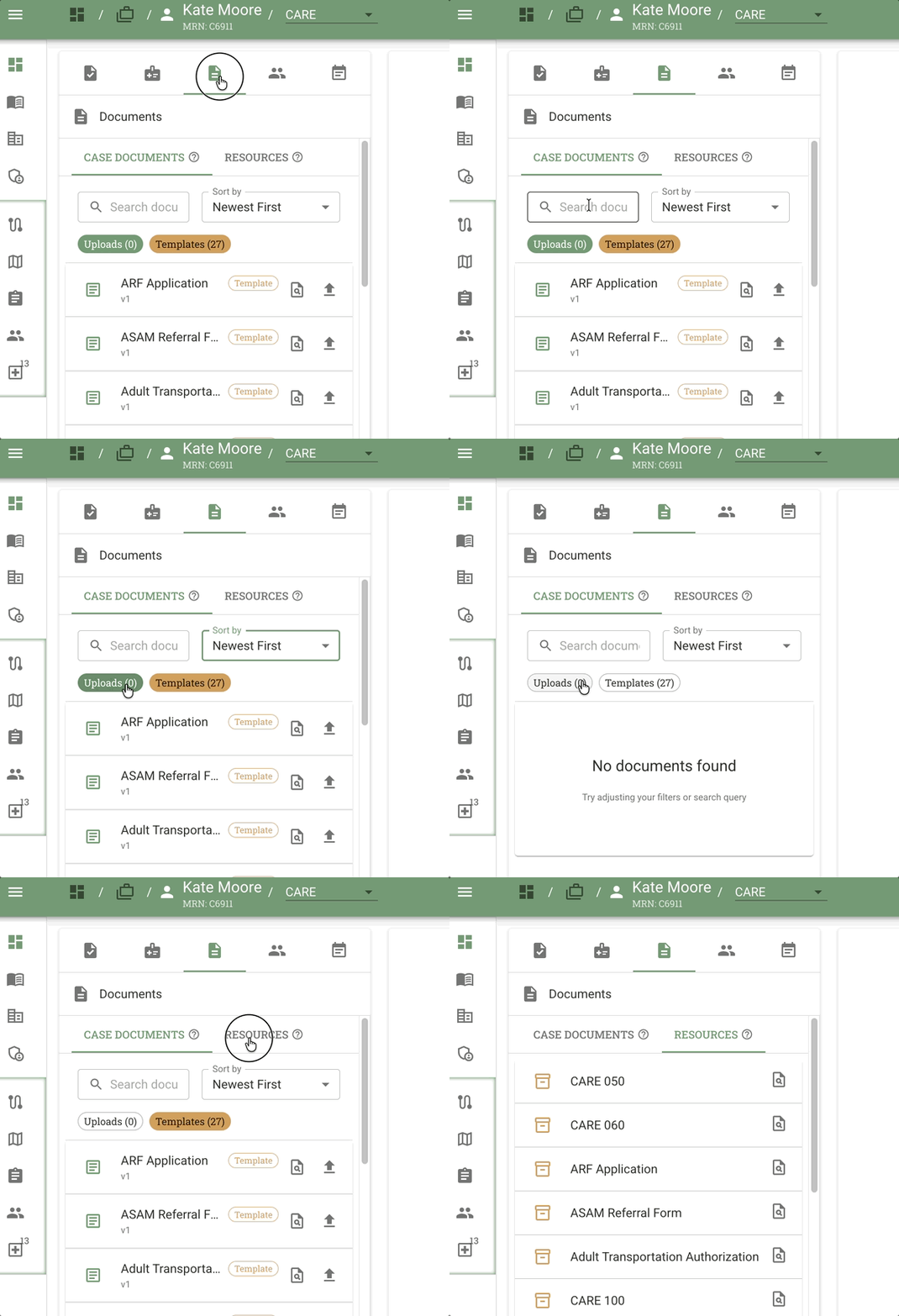
The Documents feature on the Case Page provides a centralized view of every predefined document associated with your active case flow. Documents can be accessed in two different contexts depending on your workflow needs.
What this guide covers:
- Accessing documents from the Left Sidebar and Right-Side Panel
- Understanding Case Documents vs Resources tabs
- Previewing, downloading, and uploading documents
- Working with document versions
- Filtering and searching documents
- Tracking document completion progress
What this guide does NOT cover:
- Uploading documents via Document Upload tasks (see Tasks)
- Document activity history (see Activity)
- Creating new document templates (admin/Library function)
Why Documents matter: Process compliance (e.g., CARE Act requirements) demands that staff can quickly retrieve, verify, and update required documents. The Documents feature eliminates time wasted hunting for files scattered across storage or buried in tasks, reducing errors and speeding audits.
Key Terms
| Term | Definition |
|---|---|
| Case Documents | Documents specific to this case that can be uploaded, updated, and versioned by staff. |
| Resources | Templates and reference materials useful for staff working on cases. Some serve as initial templates for case docs. |
| Document Template | Predefined document associated with the active case flow (e.g., CARE 100 form). Downloaded from Resources tab. |
| Upload | A case-specific document that has been uploaded by staff (at least one version exists). |
| Version | A numbered iteration of a document (v1, v2, v3...). Each upload creates a new version. |
| Latest Version | The most recent version of a document, indicated by a green "Latest" chip. |
How to Access Documents
Documents appear in two different contexts within Conduit:
From the Left Sidebar (Full Document Management)
Purpose: Complete document management with full search, sort, and versioning capabilities
How to access:
- Navigate to any Case Page
- Click the Documents icon in the Left Sidebar (folder icon)
- The Documents tab opens, displaying the full document interface
When to use:
- You need to search for specific documents
- You're managing multiple documents
- You need to review document versions
- You want to upload new documents outside of task workflows
What you'll see:
- Two tabs: Case Documents and Resources
- Search bar and Sort dropdown
- Badge counters showing upload progress
- Complete document list with action buttons
In the Right-Side Context Panel (Quick Access During Tasks)
Purpose: Quick access to documents while working on tasks
How it appears:
When working on Outcome, Checklist, Due Date, or Document Upload task types, the Right-Side Context Panel automatically displays a split view with Documents in the top section.
When to use:
- You're completing a task and need to reference documents
- You want to quickly preview documents while entering task data
- You need to verify document information without leaving your task
What you'll see:
- Document list
- Essential document actions (preview, download)
💡 Tip: Both views access the same documents. Changes made in one context are immediately reflected in the other. Use the Left Sidebar for comprehensive document management and the Right-Side Panel for quick task-related access.
For more on the Right-Side Context Panel, see Case Page Overview - Right-Side Context Panel.
Using the Documents Tab
Case Documents Tab
Case Documents Overview
Purpose: View and manage documents specific to this case that staff can upload, update, and version.
Tooltip: Hover over the "?" enclosed in circle icon next to the tab name to see: "Documents specific to this case that can be uploaded, updated, and versioned by staff."
Search and Filter
Search documents bar:
- Text field filters the document list by title
- Start typing to narrow results in real-time
- Clear search to return to full list
Sort by dropdown:
Three sorting options:
- Newest First - Most recently uploaded documents at top
- Oldest First - Oldest uploads at top
- Document Type (A-Z) - Alphabetical by document template name
Upload and Template Badges
Two filter badges with counters displayed below the search bar:
- Uploads - Shows count of documents with at least one version uploaded (e.g., "5 / 7" means 5 uploaded out of 7 total)
- Templates - Shows count of available document templates for the entire Episode that have not yet been uploaded
Default state when opening the tab:
- Both badges are selected (active)
- ALL documents are viewable regardless of upload status
- This shows the complete document inventory for the entire Episode
How filtering works:
- Click a badge to deactivate that filter → Removes those documents from the list
- Click again to reactivate the filter → Shows those documents again
- Active filters are highlighted/selected visually
Filter combinations:
- Both badges active (default) → Shows ALL documents (uploaded + templates)
- Only Uploads active → Shows ONLY documents that have been uploaded (with version history)
- Only Templates active → Shows ONLY documents that haven't been uploaded yet (templates waiting for files)
- Neither badge active → No documents visible (not a typical use case)
Important notes:
- When a badge filter is deactivated (not selected), documents of that type will NOT appear in the list
- As you upload documents, they move from "Templates" category to "Uploads" category
- Documents shown represent the entire Episode - the complete history (past) and future requirements for this client, not just the current Group
Badge counter updates:
- Counters update dynamically based on the current Group the case is in
- Different Groups may have different required documents
- Upload progress reflects documents required for the current workflow phase
Use case: When starting work on a new stage, deactivate the Uploads filter (leaving only Templates active) to see which documents you still need to upload.
Document List
Column layout:
| Column | Description |
|---|---|
| Title | Template name (e.g., "CARE 100", "Consent Form", "Assessment Report") |
| Version chip | Current version number (v1, v2, v3...). Click to view version history dropdown. |
| Uploaded date | Date the latest version was uploaded (MM/DD/YYYY format) |
| Uploader | Avatar of staff member who uploaded the latest version |
| Actions | Three icon buttons: Preview , Download , Upload new |
Row ordering: Documents appear in the sequence defined during workflow authoring (Process Flow template order)
Template documents (not yet uploaded): Rows for templates without any uploads display v1 in the version chip and retain the Template badge. The uploaded date and uploader fields remain empty until the first version is uploaded.
Document Actions
1. Preview Document
Icon: Eye/preview icon
What it does: Opens the document in an in-frame viewer modal
Supported formats:
- PDF files - Opens in PDF.js viewer with navigation controls
- Office files (DOCX, XLSX, PPTX) - Opens in Office viewer
- Unsupported types - Automatically triggers download instead
Viewer controls:
- Zoom in/out
- Page navigation (for multi-page PDFs)
- Download button within viewer
- Close button to return to document list
Use case: Quickly verify document contents before downloading or sharing
2. Download Document
Icon: Download arrow icon
What it does: Downloads the latest version of the document to your local device
Additional option: Right-click the Download icon for overflow menu with "Copy link" option
File naming: Downloads use the original filename or template name
Use case: Save a local copy for offline review, printing, or external sharing
3. Upload New Version
Icon: Upload arrow icon
What it does: Opens file picker to upload a new version of the document
💡 When to use this: Use the per-document Upload button when the case has progressed and there's no corresponding Document Upload task available, or when you need to quickly add/update a document without going through the task workflow.
Upload requirements:
- File format: DOCX or PDF only (.docx or .pdf extension)
- File size: Maximum 25 MB per file
Upload process:
- Click Upload new icon (⬆️) on the specific document row
- Select PDF file from your device
- Progress bar appears inline in the document row
- System auto-increments version number (e.g., v1 → v2)
- Activity tab receives new entry: "Document '[Name]' has been created with version [#]. [Case ID] of [Client Name] by [Your Name]."
- Row updates with new version chip, date, and your avatar
- Uploads badge increments if this is the first version
- Templates badge decrements if this template was previously unuploaded
Real-time updates: If another user uploads a document while you're viewing the tab, the document refreshes the row and header badge instantly.
Activity tracking: Each upload creates a datestamped entry in the Activity tab, creating an additoinal audit trail of all document versions. See Activity for more details on viewing document history.
Version History in Document Preview
How to access:
- Click the Preview icon on any uploaded document row
- Document opens in the preview modal/viewer
- Look at the top of the previewer to see version controls
What you'll see along the top:
- Version dropdown (e.g., "v2") - Click to select different versions
- Green "Latest" chip - Indicates you're viewing the most recent version
- Uploader name and avatar - Shows who uploaded the current version being viewed
- Download button - Download the version you're currently viewing
- Exit/Close button - Return to document list
Version dropdown contents:
When you click the version dropdown, you'll see:
- List of all versions in reverse chronological order (newest first)
- For each version:
- Version number (v1, v2, v3...)
- File size (e.g., "2.3 MB")
- Upload date (MM/DD/YYYY)
- Uploader name
- Green "Latest" chip on the most recent version
Selecting a different version: Click any version in the dropdown to switch the preview to that version. The uploader name, avatar, and download button update to reflect the selected version.
Use case: Retrieve an older version of a document if the latest upload has an error, or compare changes over time by switching between versions in the preview.
Example workflow:
- CARE 100 form uploaded on 12/10/2025 (v1)
- Corrected version uploaded on 12/14/2025 (v2 - current latest)
- User clicks Preview on CARE 100 document row
- Preview opens showing v2 with green "Latest" chip
- User clicks version dropdown at top of preview
- User selects v1 from dropdown
- Preview refreshes to show v1 content
- User can download v1 or switch back to v2 for comparison
Resources Tab
Resources Overview
Purpose: Access templates and reference materials useful for staff working on cases. Some resources serve as initial templates that you'll download, complete, and upload as Case Documents.
Tooltip: Hover over the "?" enclosed in circle icon next to the tab name to see: "Templates and reference materials useful for staff working on cases. Some resources serve as initial templates for case documents."
Resource List
What's included:
All document templates associated with the active Process Flow (e.g., all CARE process templates)
Columns:
- Title - Template name
- Preview Document icon - Same eye/preview icon as Case Documents tab
No version numbers: Resources are organizational templates, not case-specific uploads, so they don't have version chips or upload dates.
Typical Resource Workflow
Example: Completing a CARE 100 form
- Navigate to Resources tab
- Find "CARE 100" template in the list
- Click Preview Document icon
- PDF viewer opens in modal with CARE 100 blank template
- Use in-frame PDF viewer's Download button to save template locally
- Complete the form offline (fill in client information, case details, etc.)
- Save completed form as PDF
- Return to Case Documents tab
- Ensure Templates badge is toggled (since no version of CARE 100 exists yet)
- Find "CARE 100" row (shows "Not uploaded" badge)
- Click Upload new icon
- Select your completed CARE 100 PDF
- Document appears in Case Documents with v1 chip
- Uploads badge increments (e.g., 5/7 → 6/7)
- Templates badge decrements (e.g., 2 → 1)
- CARE 100 no longer appears in Templates-filtered view (now has an upload)
Tips and Tricks
Efficient Document Management:
- Use Templates badge at the start of a new stage to see what documents you still need to upload
- Use Uploads badge to quickly review what's already been submitted
- Preview before uploading to verify you've selected the correct file
- Check version history if you notice an unexpected change or need to reference earlier work
Avoiding Upload Mistakes:
- Filename validation helps ensure you're uploading the right document type
- If you get a filename mismatch warning, double-check you have the correct template
- Always preview the uploaded document after submission to confirm it displays correctly
Collaboration:
- Uploader avatars show who submitted each version—useful for questions or clarifications
- Real-time updates mean you'll see teammate uploads immediately
- Activity tab tracks all document actions for audit trail
Version Management:
- Each upload creates a new version automatically—no need to manually track v1, v2, etc.
- Older versions remain accessible via version dropdown—never permanently deleted
- Green "Latest" chip makes it obvious which version is current
FAQ
Q: What's the difference between Case Documents and Resources tabs?
A:
- Case Documents = Documents specific to this case that you upload, update, and version (e.g., completed forms, signed consents, client-specific assessments)
- Resources = Organizational templates and reference materials that multiple cases can use (e.g., blank CARE 100 form, policy documents, instruction guides)
Think of Resources as the "library" and Case Documents as your case's "filing cabinet."
Q: Can I upload a document that's not in the predefined template list?
A: No. The Documents tab only shows predefined documents associated with the active case flow. These are defined when the Process Flow template is created in Library. If you need to upload an ad-hoc document, contact your administrator about adding it to the Process Flow template or use a Document Upload task if available.
Q: What happens to Templates badge when I upload a document?
A: When you upload the first version of a template document:
- Uploads badge increments (e.g., 5/7 → 6/7)
- Templates badge decrements (e.g., 2 → 1)
- Document moves from "Not uploaded" status to showing version chip and date
- When Templates filter is active, that document disappears from the list (it's now an Upload)
Q: Can I delete a document version?
A: No. For audit and compliance purposes, all document versions are retained. You can upload a new version to supersede an old one, but previous versions remain accessible via the version dropdown. If you uploaded a document in error, contact your administrator.
Q: Can other team members see documents I upload?
A: Yes. Once uploaded, all documents in the Case Documents tab are visible to anyone with access to the case. All users can:
- View documents and upload history via Preview
- Download documents to their local device
- Close Document Preview to return to the document list
Document access is case-level, not user-specific. The uploader's avatar shows who submitted each version for accountability and reference.
Q: What file formats can I upload?
A: Currently, only PDF files (.pdf) up to 25 MB are supported for uploads. Documents in other formats must be converted to PDF first.
Q: How do I know if all required documents have been uploaded?
A: Check the Uploads badge counter. When it shows the same number as the total (e.g., "7 / 7"), all expected documents for the current Group have at least one version uploaded.
You can also toggle the Templates badge—if no documents appear, everything has been uploaded.
Q: Do documents upload immediately or is there a delay?
A: Uploads process in real-time. You'll see an inline progress bar during the upload, and once complete, the row updates immediately. Other users viewing the same case will also see the update via real-time refresh.
Q: What's the difference between using the Upload button in Documents vs. a Document Upload task?
A: Both methods upload documents to the same location, but they serve different purposes:
Upload button (⬆️ icon on each document row):
- Direct access to upload or update any document at any time
- Useful when the case has progressed past the stage with the corresponding task
- Allows quick updates without navigating through tasks
- Same functionality as Document Upload tasks, just accessed differently
Document Upload task:
- Part of the structured workflow for a specific stage
- Appears as an assigned task you need to complete
- Typically used during normal workflow progression
- Completing the task marks it as done in your task list
Example use case: If a case has progressed to a later stage and you need to upload a document that didn't have a corresponding task earlier (or the task is no longer available), use the Upload button (⬆️) directly from the document row in the Documents tab.
💡 Tip: Think of Document Upload tasks as the "during workflow" method and the Upload button as the "anytime access" method. Both create versioned documents in the Case Documents tab.
Related Documents
- Case Page Overview - Understanding the Case Page layout and tab structure
- Tasks - Document Upload task type for task-based document submission
- Activity - Viewing document upload events in the activity timeline
- Process Flows Guide - Understanding how document templates are associated with Process Flows
- Cases Overview - Understanding case concepts and workflow hierarchy