Case Flow Visualization
Last Updated: April 15, 2026
Document ID: UG-CASE-FLOW-VIZ-001
Version: 1.1
Overview
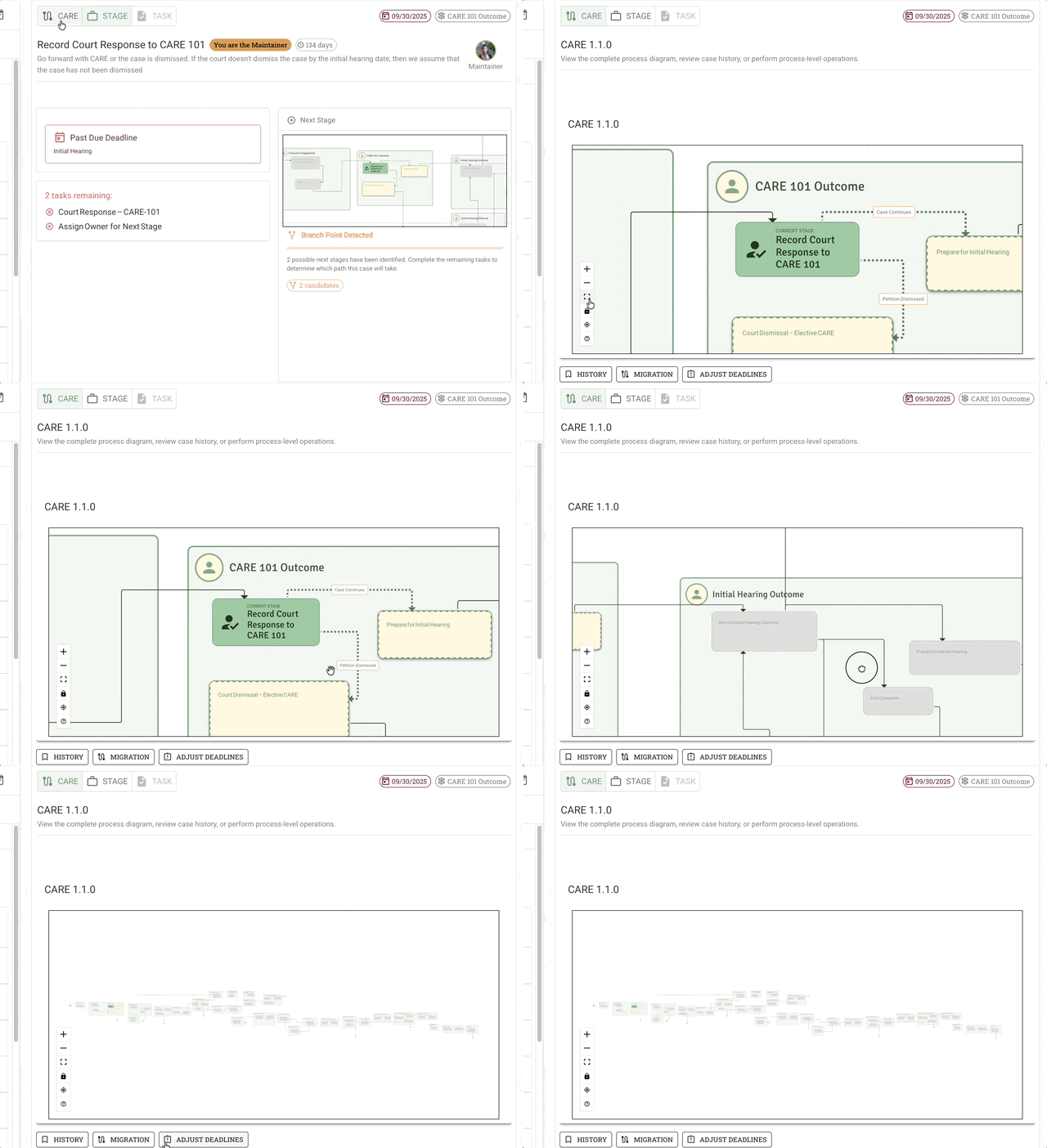
The Case Flow Visualization provides a visual representation of a case's progress through the defined care process. It appears as the default view on the Case Page, showing stages, tasks, and the current position in the workflow.
💡 New to Process Flows? For a detailed explanation of how Groups, Stages, and Tasks work together to move cases forward, see the Process Flows Guide.
Location
Where to Find It:
- Case Page - Default view when you open any case
- Located at the top of the Case Page, above the accordion sections
- Displays as a horizontal or vertical flow diagram
What the Visualization Shows
The Case Flow Visualization displays:
- Process Stages - Each stage in the care process (e.g., Intake, Assessment, Service Planning)
- Current Stage - Highlighted to show where the case currently is in the process
- Completed Stages - Visual indicators (e.g., checkmarks, green highlighting) for stages already completed
- Upcoming Stages - Future stages in the workflow
Task Progress Tracking Panel
Located at the top right of the Case Flow Visualization, you'll find the Task Progress Tracking Panel (also called a "scratch-off" task list), which displays:
- "[#] tasks remaining:" - Counter showing how many tasks are left to complete
- Task List - All tasks for the current stage listed below the counter
- Incomplete tasks appear in red text
- Completed tasks turn green and display with strikethrough
- Provides at-a-glance progress tracking without opening task details
Deadline Widget
Adjacent to the Task Progress Tracking Panel, at the same height, is the Deadline Widget which shows:
- Upcoming deadlines for the current stage
- Past due deadlines highlighted for urgent attention
- Reflects the same deadline information shown on expanded case cards in My Dashboard
Note: Both widgets are permanent fixtures in this panel and cannot be moved or repositioned.
Understanding the Visual Elements
Stage Indicators
- Active Stage - The current stage where work is being performed
- Completed Stages - Stages with all required tasks completed
- Upcoming Stages - Stages that will be activated once current work is complete
Navigating the Flow
Viewing Stage Details
- Click on a stage - Some process flows allow clicking to expand stage details
- Hover for information - Hovering over stages may display tooltips with additional information
Understanding Stage Transitions
The visualization shows how cases move from one stage to the next:
- Linear flows - Cases progress sequentially through stages
- Conditional flows - Some processes may branch based on case circumstances
- Review/approval gates - Stages that require approval before proceeding
💡 Learn more: For details on completing tasks to advance between stages, see Task Management.
Use Cases
For Case Managers
- Quick status check - See at a glance where a case is in the process
- Identify bottlenecks - Spot stages where cases are stuck
- Communicate progress - Show clients or team members where the case stands
For Supervisors
- Monitor case progress - Understand overall case movement through workflows
- Identify training needs - See where team members may need support
- Ensure compliance - Verify cases are following the proper process
Tips
- Use the Case Flow Visualization for a high-level overview before diving into task details
- Watch the Task Progress Tracking Panel to monitor your completion progress in the current stage
- Check the Deadline Widget regularly to stay aware of upcoming and past due deadlines
- Reference the visualization when discussing case status with team members or clients
Related Documentation
- Case Page Overview - Complete Case Page layout
- Tasks - Working with tasks in stages
- Process Flows - Understanding process design and stage navigation
- Case History - Viewing previous case episodes
FAQ
Q: Can I jump between stages in the flow visualization?
A: This depends on your process configuration and permissions.
Q: Why can't I see the complete flow?
A: Some processes may show only relevant portions of the flow based on the case's current state or your permissions. Contact your administrator if you need visibility into other stages.
Q: What if my process doesn't show a visualization?
A: Not all processes include visual flow diagrams. Your process may use a simpler task list structure instead. Contact your administrator for information about your specific process design.